

Elynkon Edge Server I63
Product Overview
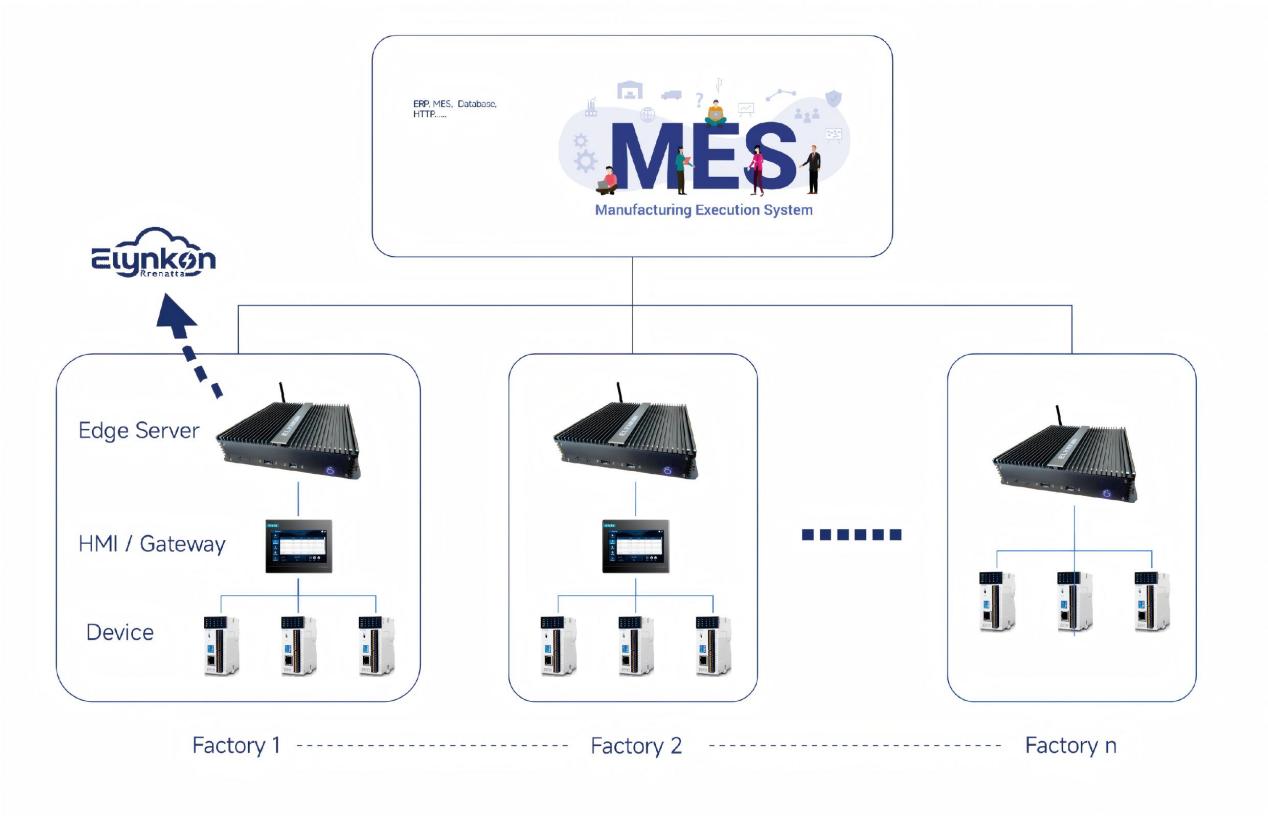
Elynkon Edge Server I63 is a mini server privately deployed at the network edge, close to IoT terminals and field data sources.
Edge server I63 is not only a server integrates with supervisory-level devices such as HMIs, gateways, and SCADA systems, but also acquires data directly from PLCs in the control layer via protocols such as Modbus and OPC UA. By providing edge-side preprocessing, storage, and visualization, it converts raw field data into actionable insights—effectively bridging the traditional divide between Operational Technology (OT) and Information Technology (IT).
Product Information
Model Type
| Product | Type | Specification |
|---|---|---|
| Edge Server | RN-ES-I63 | Intel i3 6th Gen Processor + DDR4 8GB RAM / 1TB SSD / 1 HDMI + 1 VGA / 2Ethernet Ports / WiFi / 4 USB |
Specifications
| System | |
|---|---|
| Processor | Intel Core i3 processor |
| OS | Linux |
| Memory | DDR4 2400MHz,8GB |
| Storage | 1TB |
| External I/0 | |
| Ethernet | 2*RJ45 10/100/1000Mpbs Realtek (or Intel) |
| Video | 1VGA、1HDMI |
| USB | 4USB (2USB2.0、2*USB3.0) |
| Audio | 1*Audio (Line-out@Mic-in 2 in 1) |
| WiFi | Supported |
| Mechanical | |
| Case | Formed from a single piece of aluminum alloy via custom tooling |
| Mounting | Embedded installation |
| Dimension | 23520052 |
| Weight | 1.5Kg |
| Environment | |
| Operation Temperature | -20℃~60℃ |
| Storage Temperature | -30℃~70℃ |
| Relative Humidity | 5%~95%, Non-condensing |
| Power | |
| Power Input | DC12V @5A |
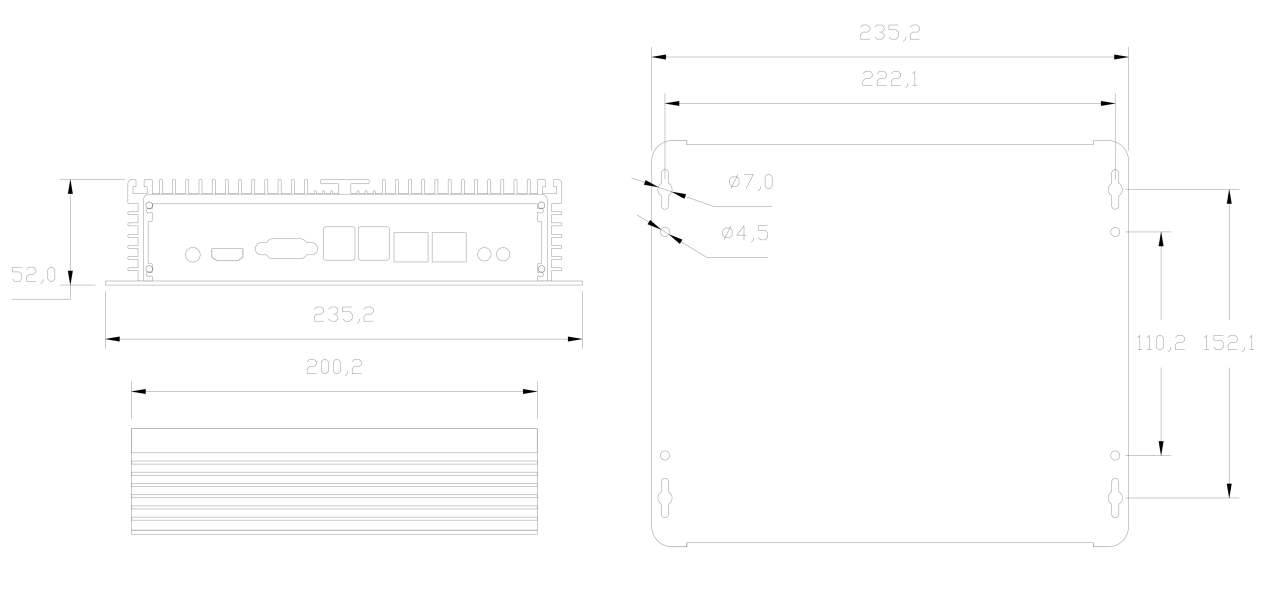
External Dimensions
The external dimensions of the edge server I63 are shown below.
Product Configuration
Default Network Parameters
- LAN Port 1 (enp1s0)
- IPv4 Method: Manual
- IP Address: 192.168.1.63
- Net Mask: 255.255.0.0
- Gateway: 192.168.1.1
- LAN Port 2 (enp2s0)
- IPv4 Method: Automatic (DHCP)
Accessing the Server
Local Console (HDMI)
Connect a monitor, mouse, and keyboard to the server’s HDMI and USB ports. The server must be connected to a network (LAN or Internet) for the service to function properly.
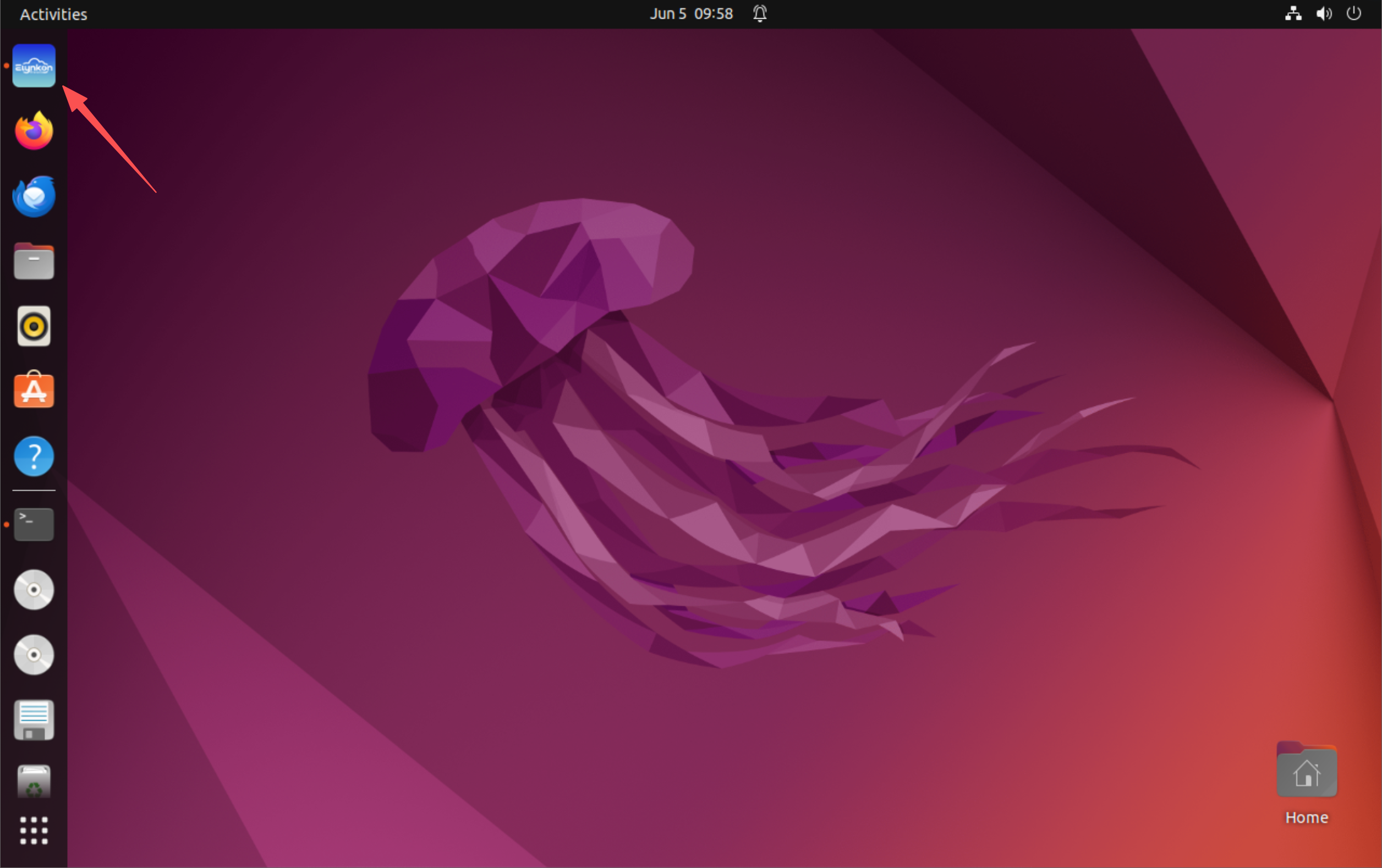
On the Ubuntu desktop, click the Elynkon icon in the dock to open the service interface. This application provides direct access to the service interface in a dedicated window.
Elynkon Desktop Application
The Elynkon application is pre-installed on the server’s system and provides direct access to the service interface.
Once the system has started and you are logged into the Ubuntu desktop, you will find the Elynkon icon in the dock (the application launcher bar). Clicking this icon opens a dedicated window that connects to the server’s service. It is a standalone application with built-in browser functionality, so you do not need to open a separate web browser to access the service.
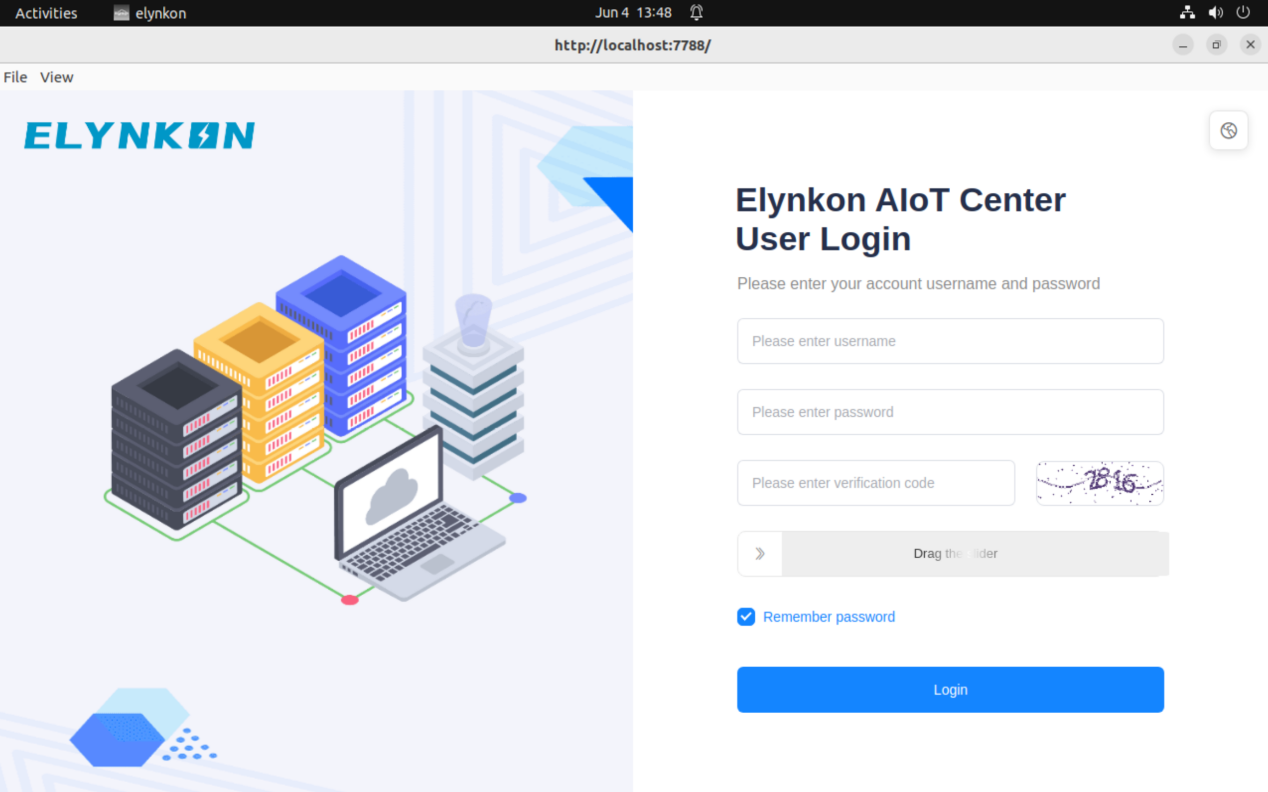
After opening Elynkon, you will be taken directly to the service login page. For instructions on signing in and default credentials, please refer to section 3.3 Logging In to the Service.
The application also offers these useful configuration options:
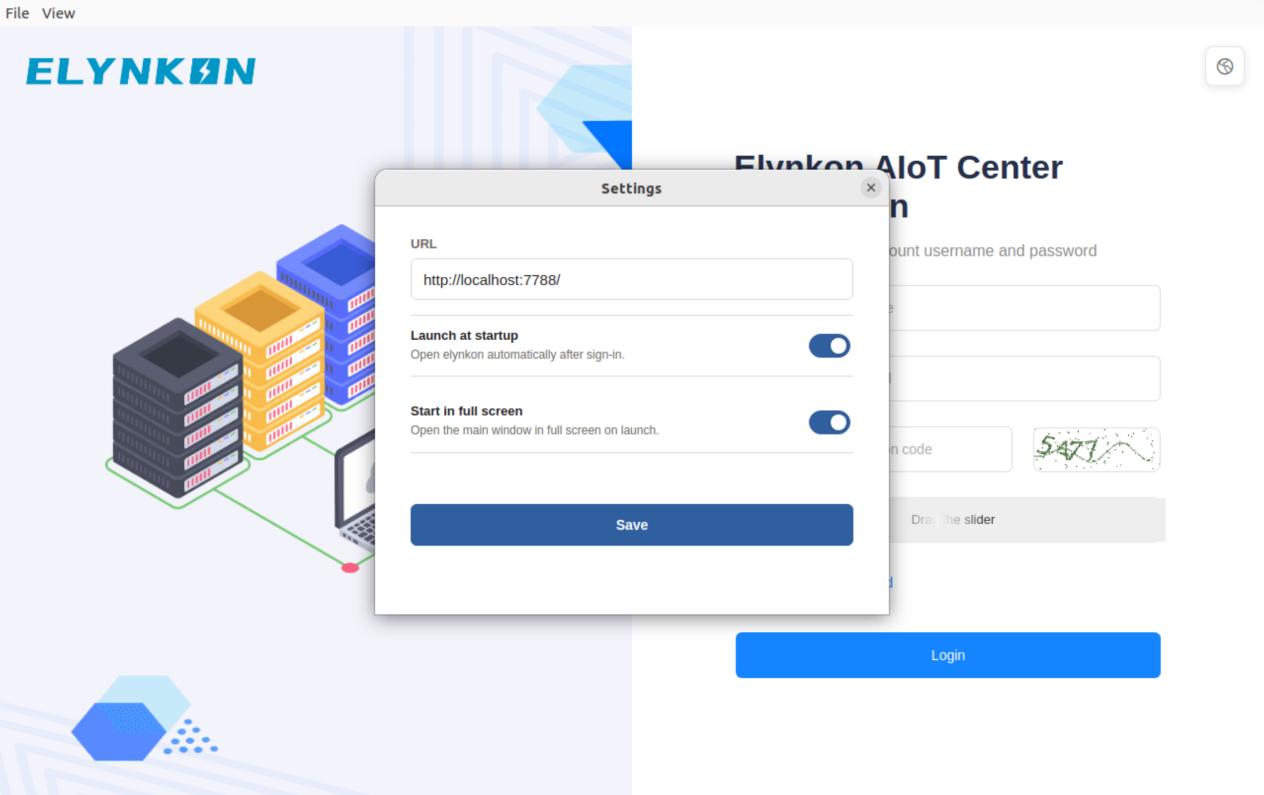
- Custom URL: By default, the application connects to the local service at
http://localhost:7788. You can change this to any address by going to File > Settings and entering the desired URL. - Startup behavior: In the same Settings window, you can enable Launch at Startup so that the application launches automatically after system startup.
Note: The desktop application may start before the background Elynkon service is fully ready. In this case, you might briefly see a connection failure message. The application will automatically retry and establish the connection within 10 seconds — no manual action is needed.
- Full-screen launch: You may also configure the application to Start in Full-screen mode from File > Settings.
- Full-screen toggle: While the application is running, you can enter or exit full-screen mode at any time by selecting View > Full Screen from the menu, or simply by pressing F11.
Local Area Network Access
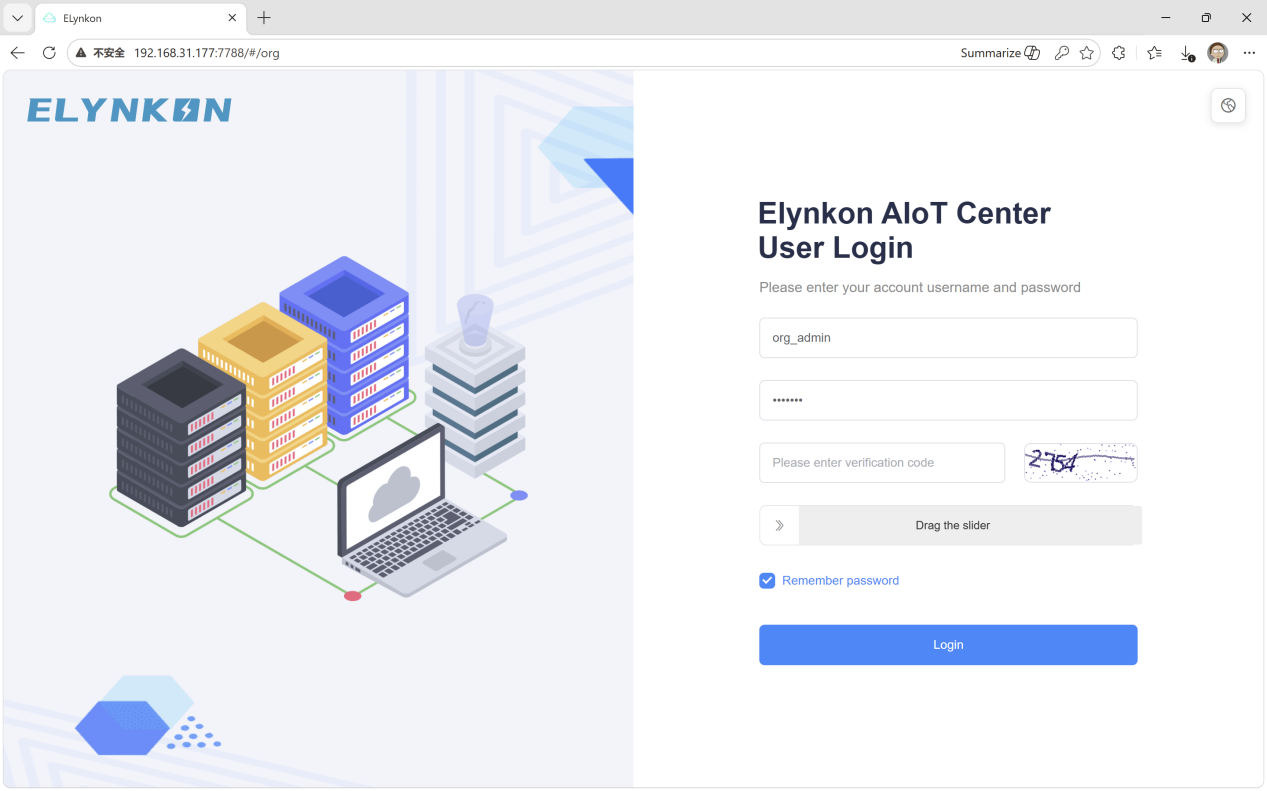
You can access the service over the local network by connecting the server via Ethernet or WiFi. Once the server obtains an IP address, open a browser on any computer within the same LAN and enter the server's IP address followed by port 7788 (e.g., http://<server-ip>:7788).
If a monitor is not available, you can also connect your computer directly to the server using an Ethernet cable plugged into LAN port 1. Then enter the server’s current IP address with port 7788 in a browser.
Note: If the server's IP address has not been changed from the factory default, you can use the default address: http://192.168.1.63:7788.
Logging In to Service
Regardless of the access method you use (HDMI local console or LAN), you will be directed to the service login page.
Use the following default credentials to sign in:
- Username: org_admin
- Password: 123456
⚠️ Security Note: On your first login, you are recommended to change the default password. This ensures that only authorized users can access the server. Please set a strong password and keep it safe.
Once logged in, you can begin managing the server. To enable access from outside your local network, locate the cloud access link within the management interface. For detailed instructions, see section 3.4 Cloud Access.
Cloud Access
The cloud access feature allows you to reach the server’s service interface from outside your local network, using a unique link provided by the system.
Prerequisites
The server must be connected to the internet (via Ethernet or Wi-Fi). You must first log in to the service locally. (See section 3.3 Logging In to the Service.)
Obtaining the Cloud Access Link
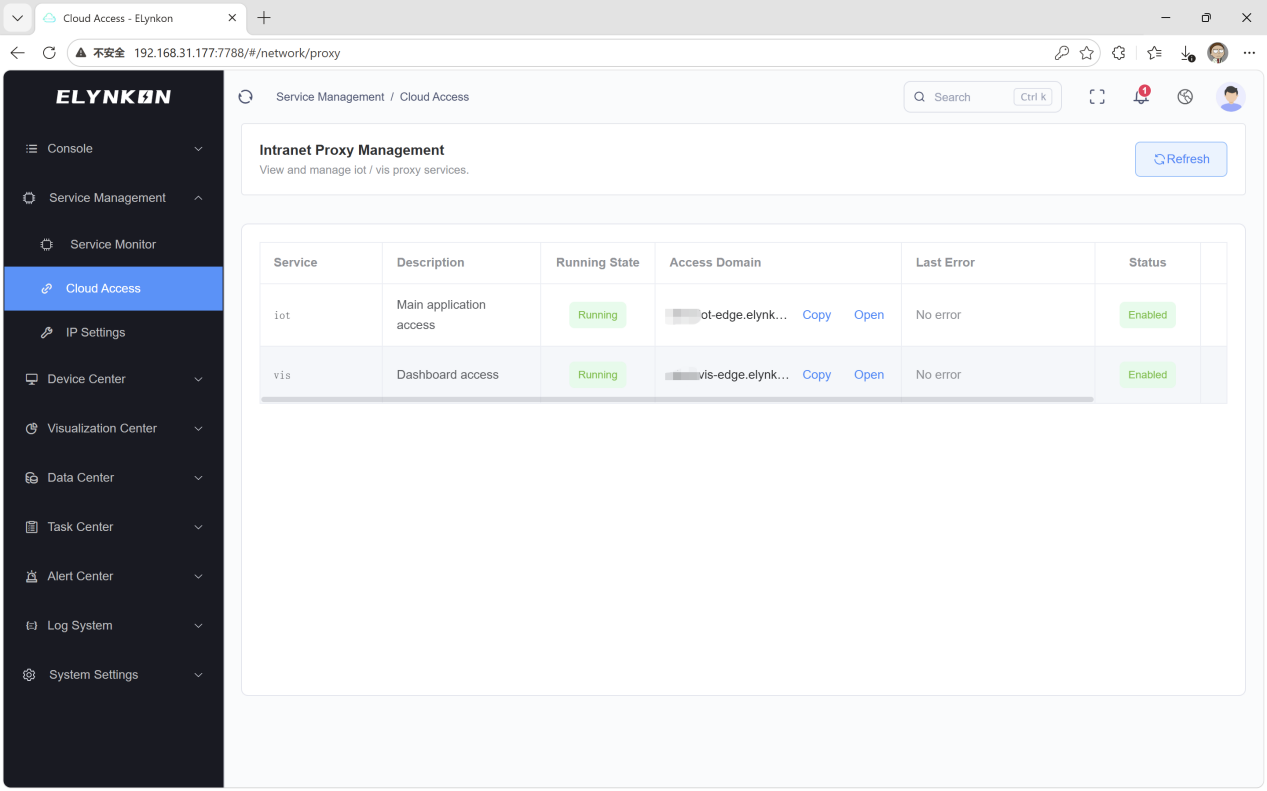
After logging in, go to the Service Management -> Cloud Access section in the management interface. The page will display an access domain generated by the server.
Accessing the Service Remotely
Copy the URL and open it in a browser on any device with internet access.
You will be directed to the service login page. Use your existing credentials to sign in.
Notes
The cloud access link remains active as long as the server stays connected to the internet. For security, treat this link as confidential. Do not share it with untrusted parties. Keep the cloud access URL private to prevent unauthorized access.