Device Groups
Features Introduction
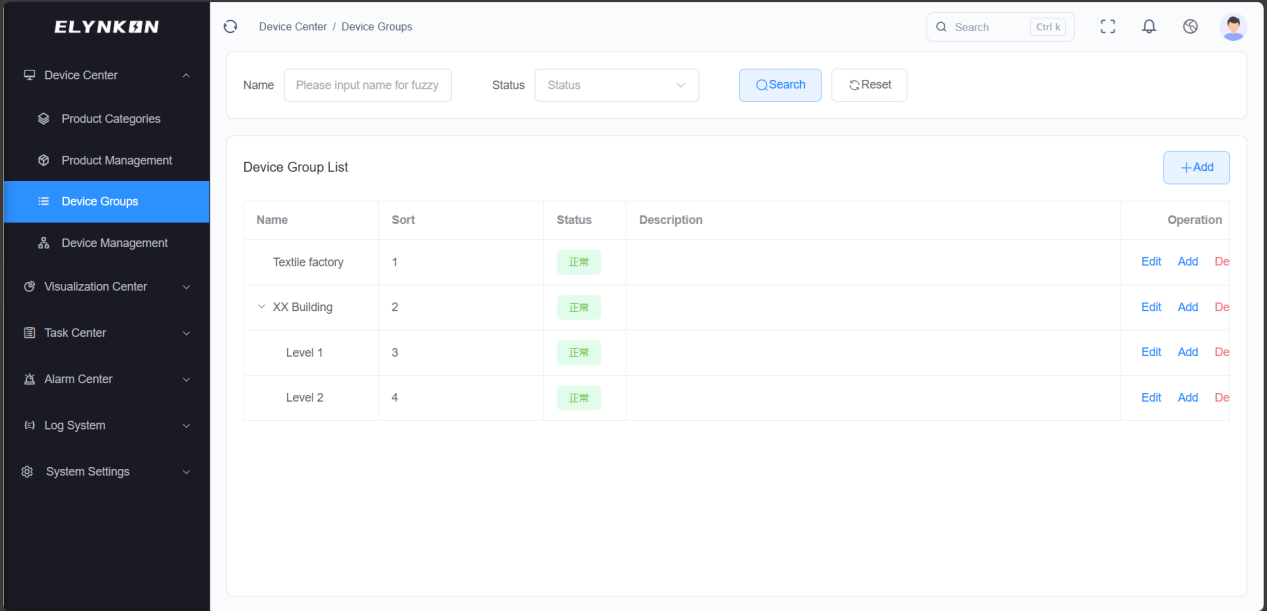
The device groups function is designed to centrally manage and classify a large number of on-site devices.
Devices can be grouped based on actual project requirements such as device installation area, device type, and functional purpose. The device groups function supports a multi-level tree structure, enabling hierarchical management of device groups from coarse to fine.
This function builds a consistent data foundation for subsequent operations such as device onboarding, data collection, and remote management, thereby improving the efficiency and standardization of device management on the platform.
Group Creation
Adding a New Device Group
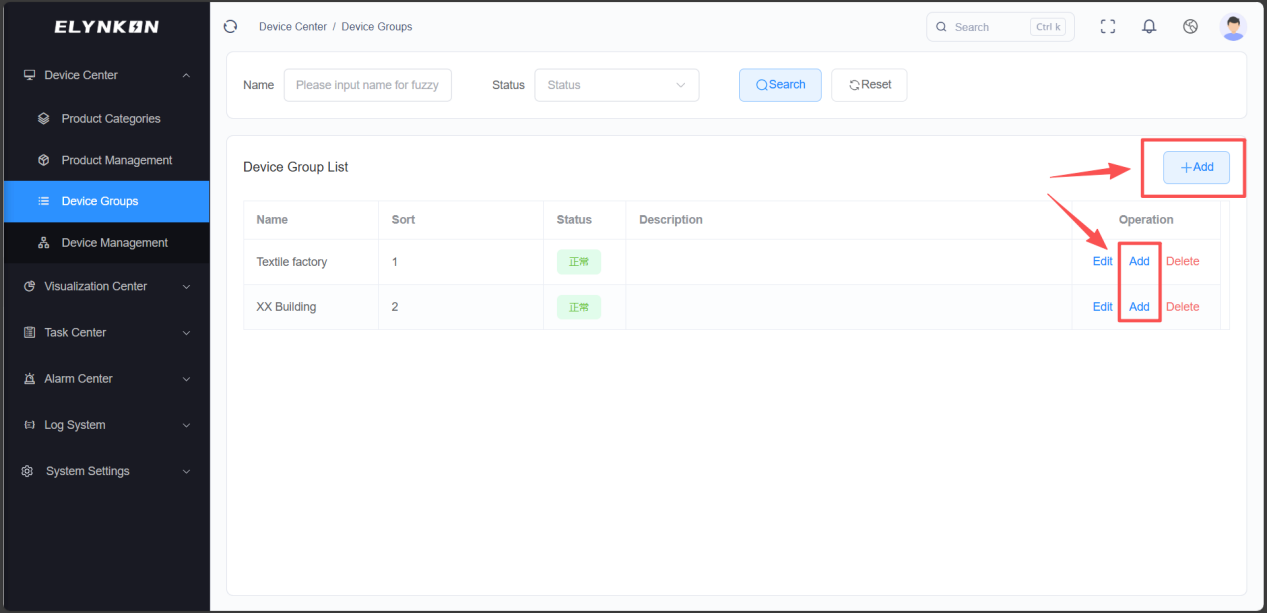
Click the "+Add" button in the upper right corner of the device groups list, or the "Add" button corresponding to each device group row, to start the device group creation process.
Filling in Group Basic Information
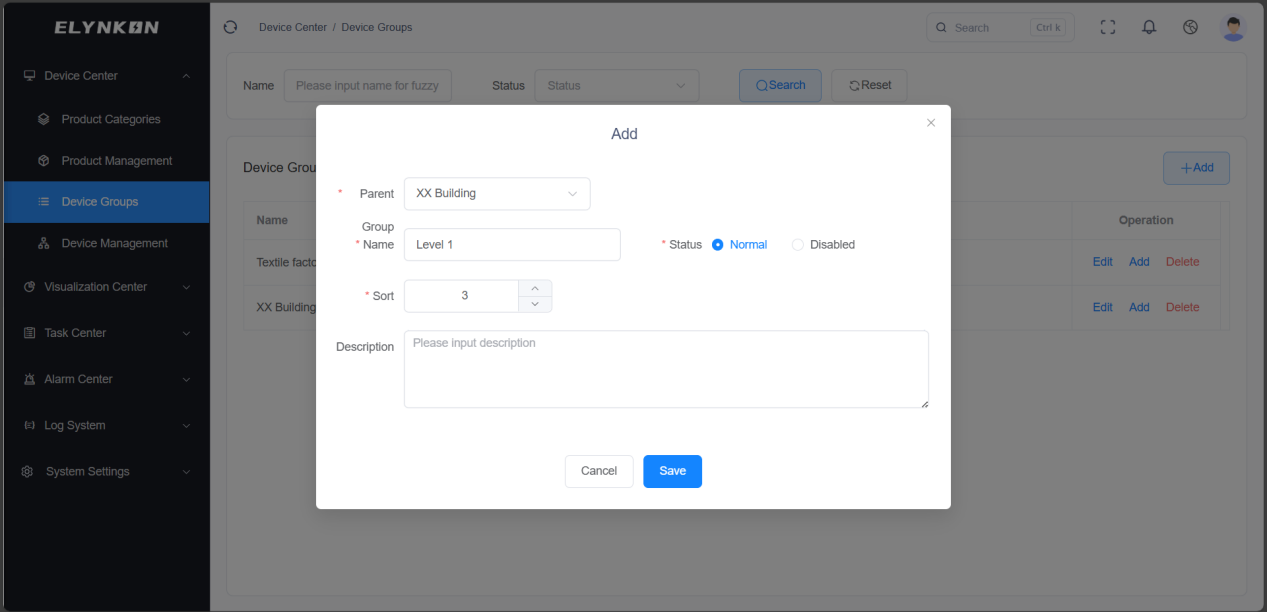
It is recommended to classify by "Project" + "Floor" + "Room". For example, use the project name as the parent group and add specific floors/rooms under it.
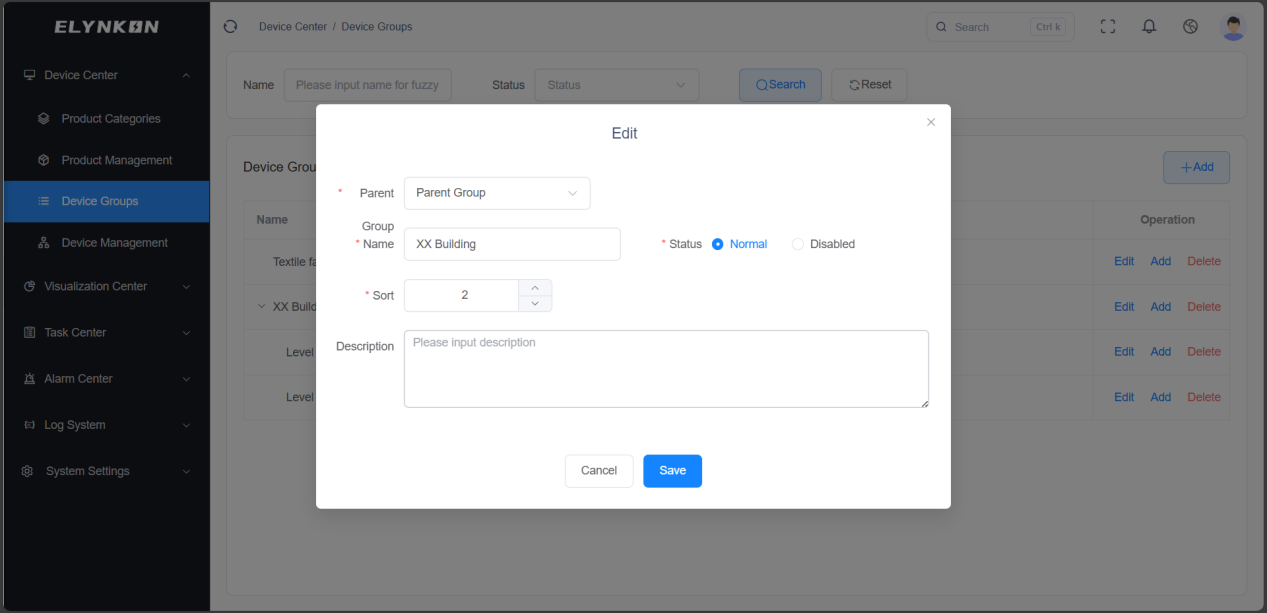
- Step 1: Select parent group: You can create a new parent group or add a child group under an existing parent group.
- Step 2: Enter group name: for example, "XX Building", "Level 1".
- Step 3: Select status: Normal or Disabled.
- Step 4: Enter sort order.
- Step 5: Enter description.
- Step 6: Click the "Save" button.
Group Edit & Modification
In the "Operation" column of the row where the target device group is located, click the "Edit" button to access the dedicated editing page for this group and then modify the group information.
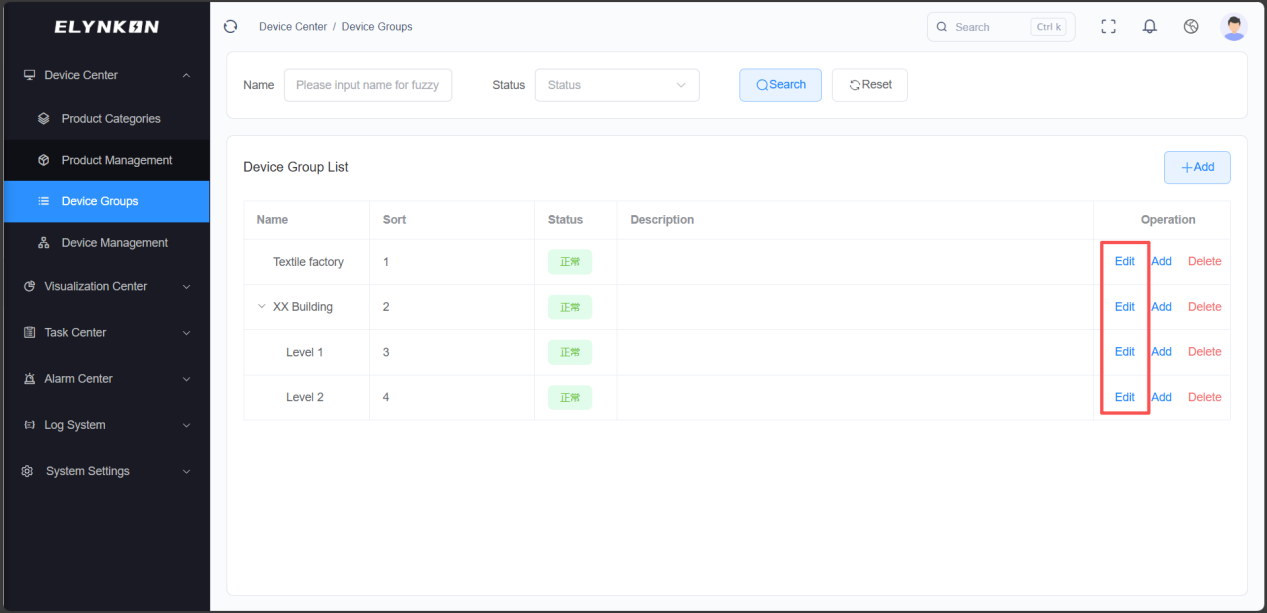
Modifiable group information includes: parent group, group name, group status, sort order, and group description. Click the "Save" button to complete the modification.
Group Deletion
DANGER
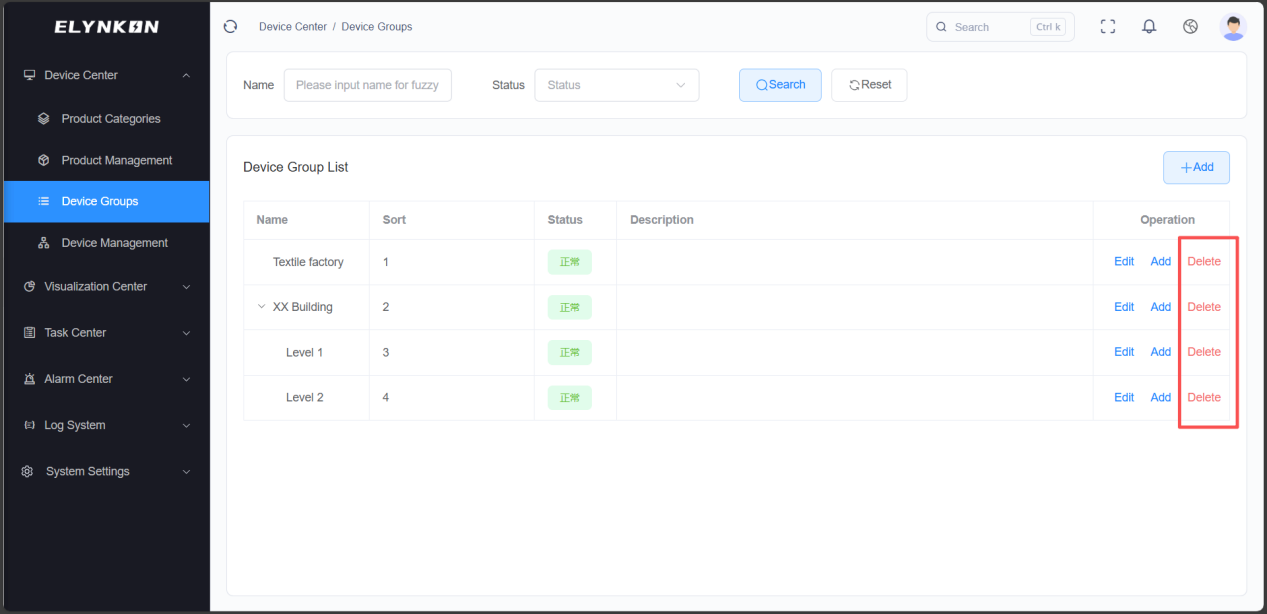
Deleting a device group is irreversible. Ensure that no devices are assigned to this group before proceeding.
In the "Operation" column of the row where the target device group is located, click the "Delete" button. After the confirmation window pops up, click the "Confirm" button in the window to complete the deletion of the group.