
5. Device Groups
5.1 Features Introduction
The device group function is designed to manage and classify a large number of on-site devices in a centralized manner.
Devices can be grouped based on actual project requirements such as device installation area, device type, and functional purpose. The device group function supports a multi-level tree structure, enabling a hierarchical management of device groups from general to specific.
This function establishes a consistent data foundation for subsequent operations such as device onboarding, data collection, and remote management, thereby improving the efficiency and standardization of device management on the platform.
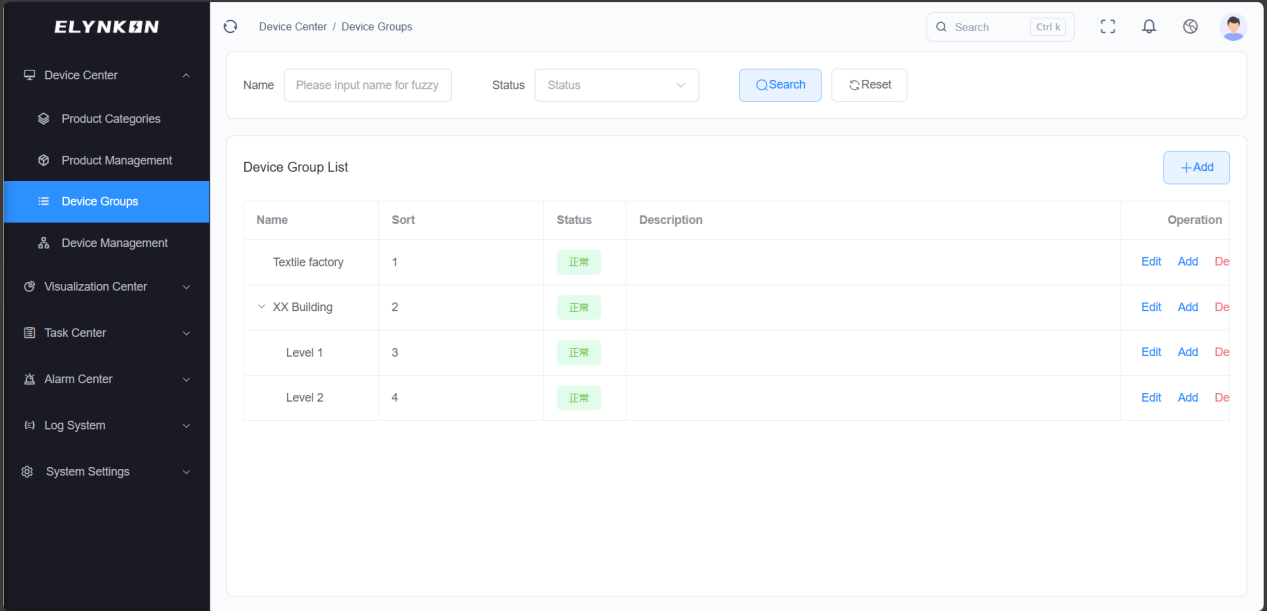
Figure 5-1
5.2 Group Creation
5.2.1 Adding a New Device Group
Click the "+Add" button in the top-right corner of the device group list, or the corresponding "Add" button in the row of each device group, to initiate the device group creation process.
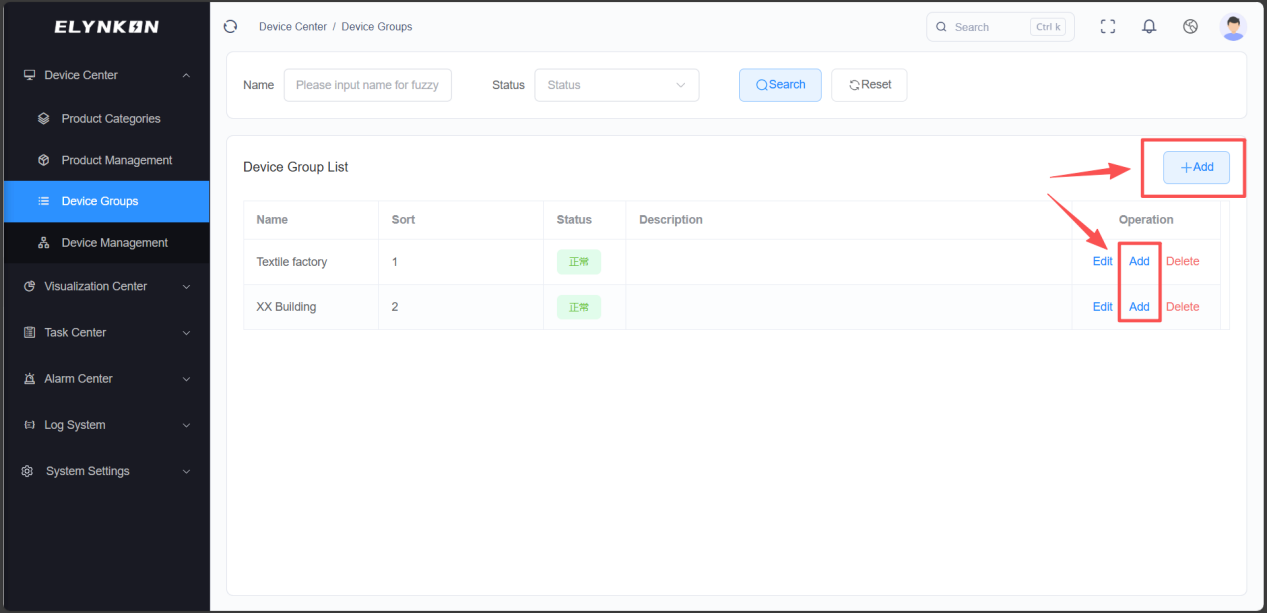
Figure 5-2
5.2.2 Filling in the Basic Group Information
It is recommended to classify by "Project" + "Floor" + "Room". For example, take project name as parent group and add specific floors/rooms under them.
Step 1: Select the parent group: You can create a new parent group or add a child group under an existing parent group.
Step 2: Enter the group name: e.g., "XX Building", "Level 1".
Step 3: Select the status: Normal or Disabled
Step 4: Enter the sorting number.
Step 5: Enter the description.
Step 6: Click the "Save" button.
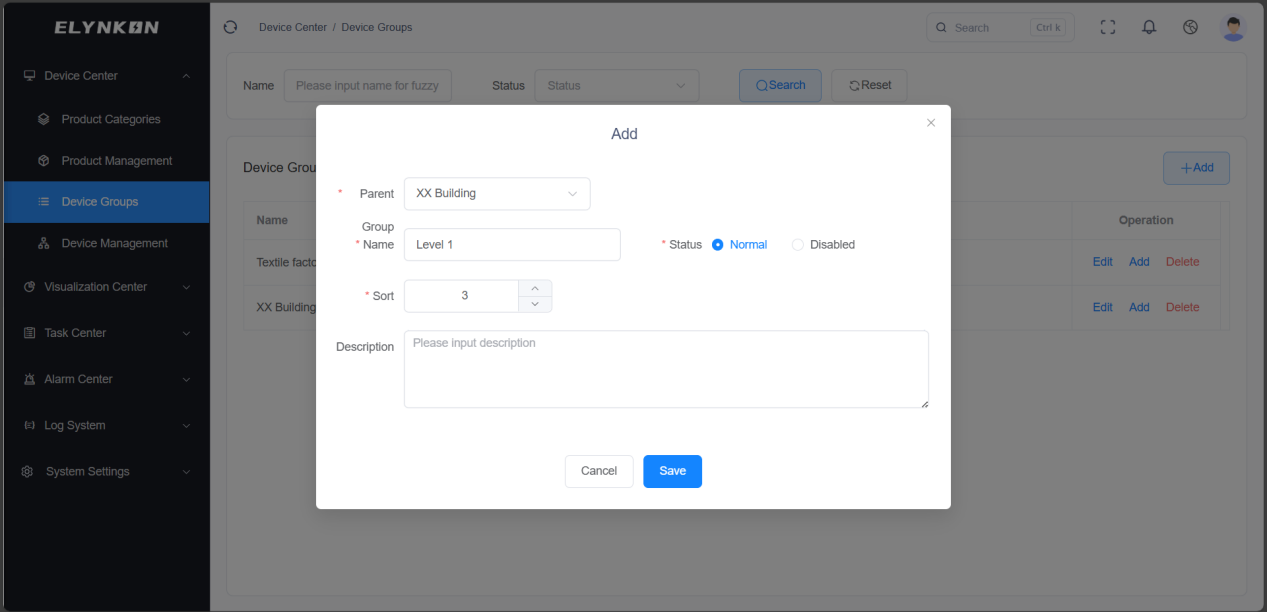
Figure 5-3
5.3 Group Edit and Modification
In the "Operation" column of the row where the target device group is located, click the "Edit" button to access the dedicated edit page for this group and then modify the group information.
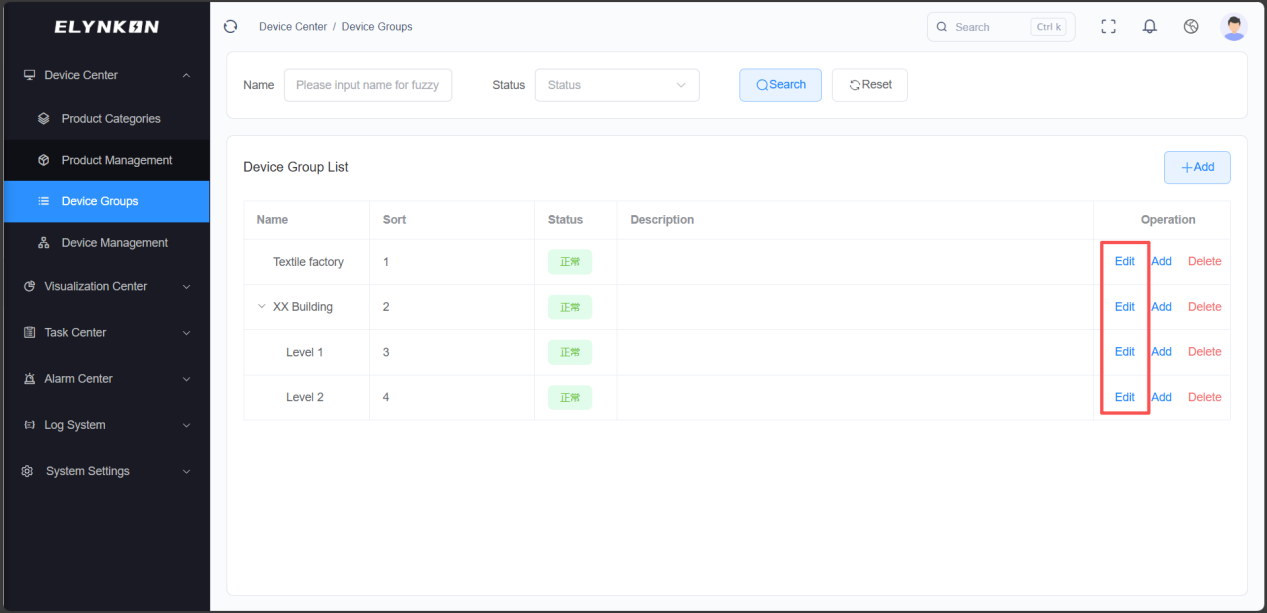
Figure 5-4
The group information that can be modified includes: parent group, group name, group status, sorting number, and group description. Click the "Save" button to complete the modification.
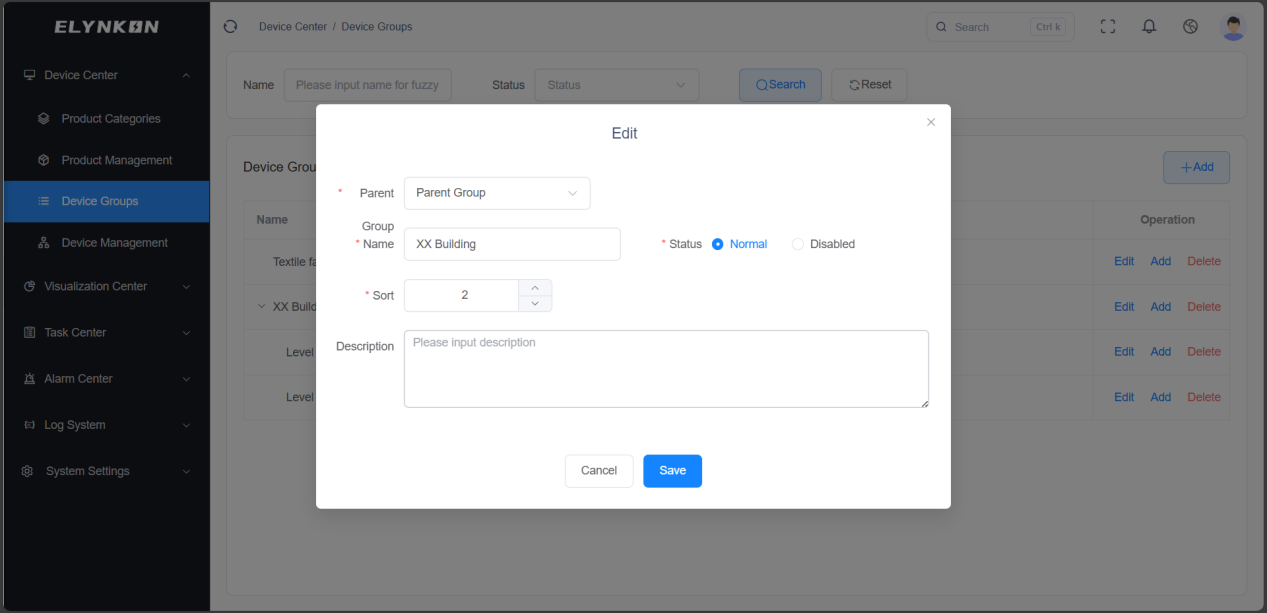
Figure 5-5
5.4 Group Deletion
In the "Operation" column of the row where the target device group is located, click the "Delete" button. Once the confirmation window pops up, click the "Confirm" button in the window to complete the deletion of the group.
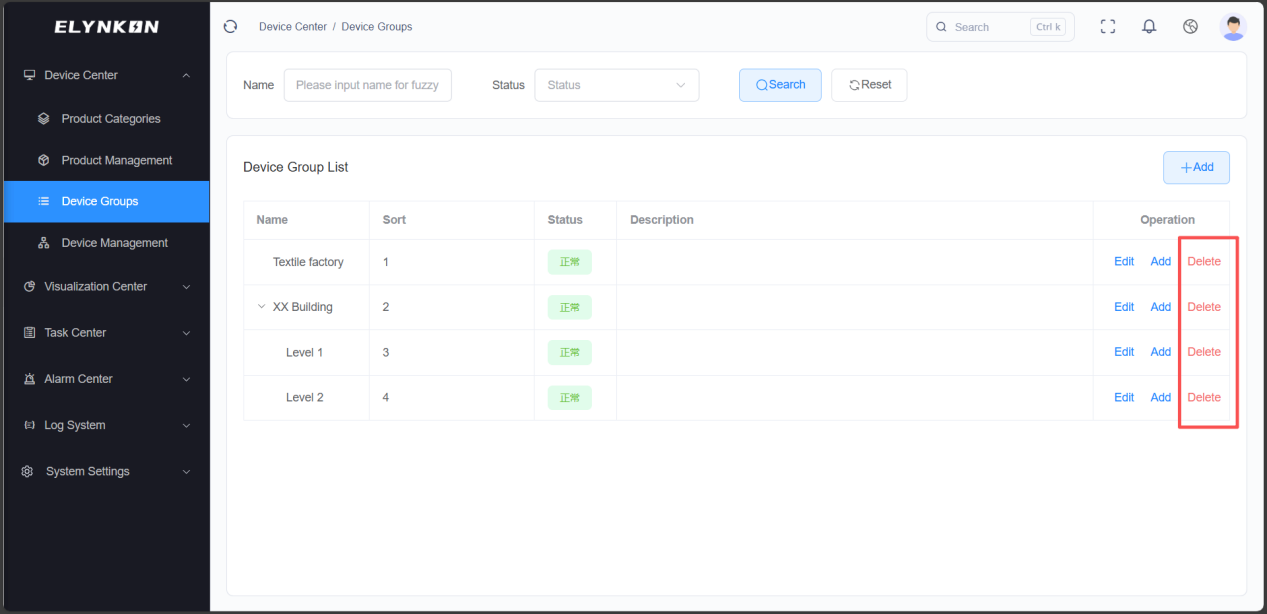
Figure 5-6
© 2026 厦门易联控贸易有限公司
Powered by Xiamen Renatta Technology Co., Ltd.
 闽公网安备35021302000901号
Documentation V1.0 | Last updated: 2026-06-08