
6. Device Management
6.1 Features Introduction
The device management function is designed to manage and maintain the device information and related parameters of IoT devices in the platform.
It covers the entire lifecycle of devices, including device onboarding, monitoring, and fault troubleshooting.
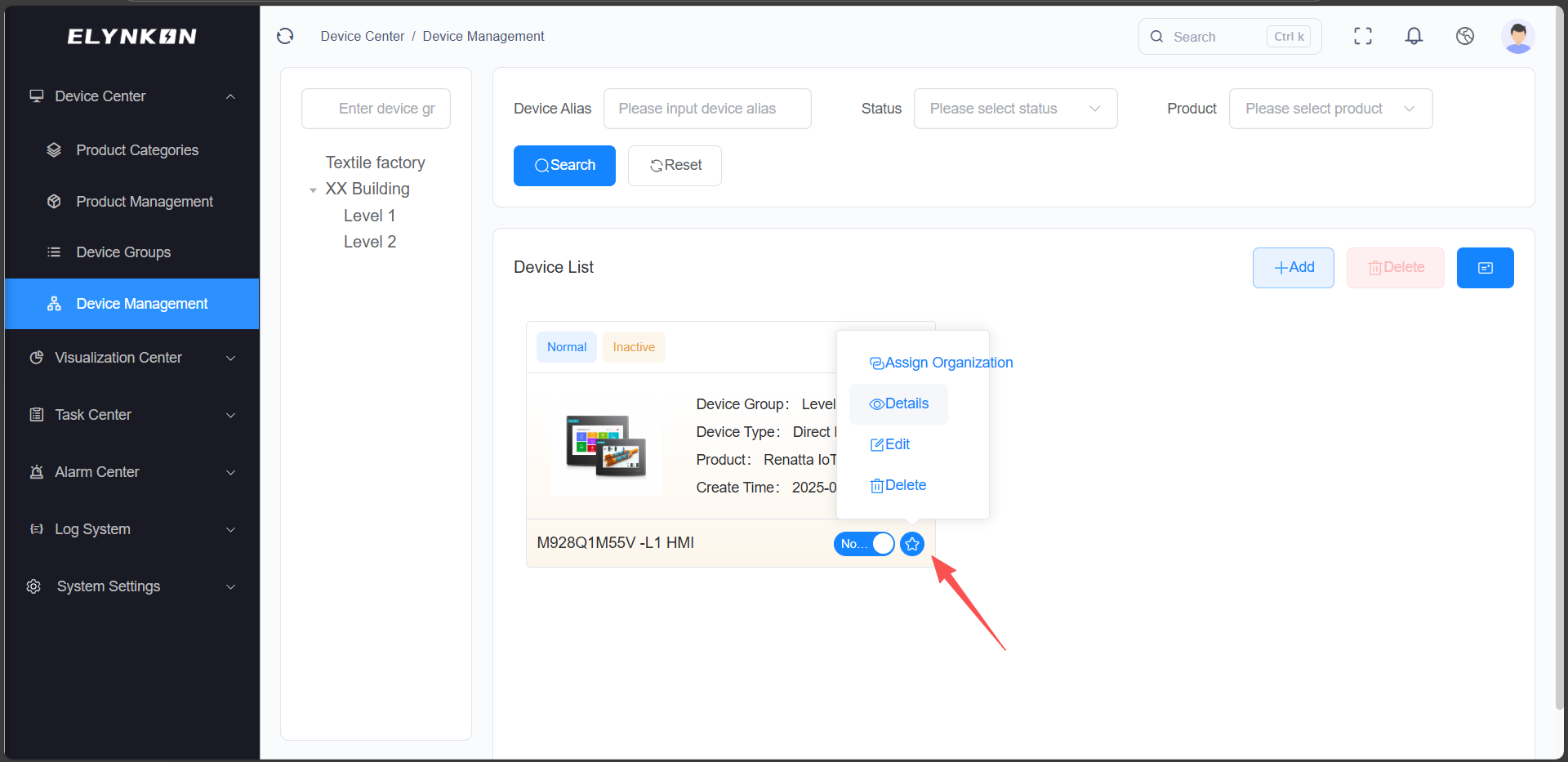
Figure 6-1
6.2 Device Creation
6.2.1 Adding a New Device
In the Device Management module, Click the "+Add" button to add device.
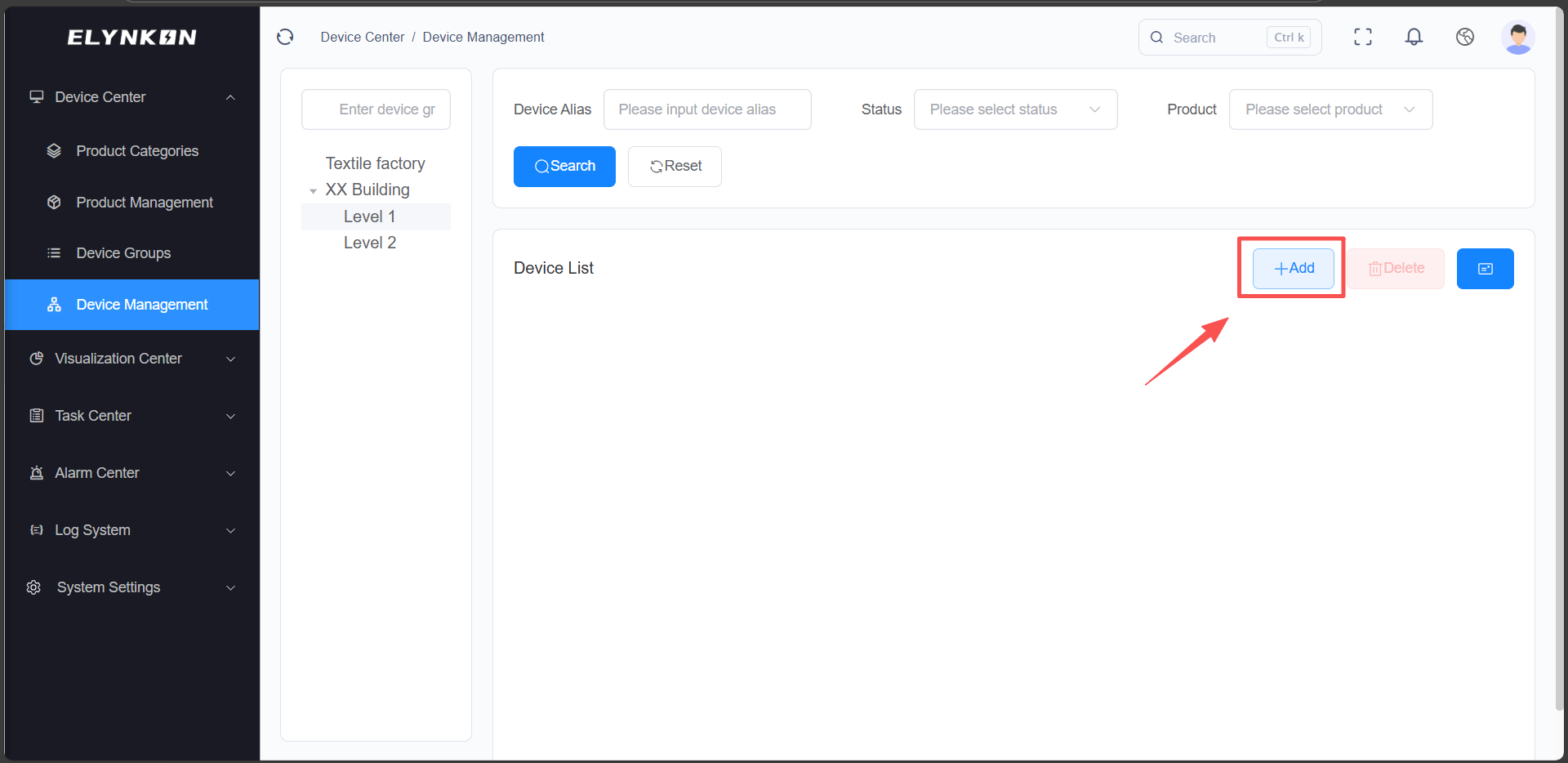
Figure 6-2
6.2.2 Filling in the Basic Device Information
Step 1: Enter the device name: e.g., "L1 HMI".
Step 2: Select the device group: e.g., "XX Building" - "Level 1".
Step 3: Select the product: e.g., "Renatta IoT HMI".
Step 4: Select the status: Normal or Disabled
Step 5: Enter the description.
Step 6: Click the "Save" button.
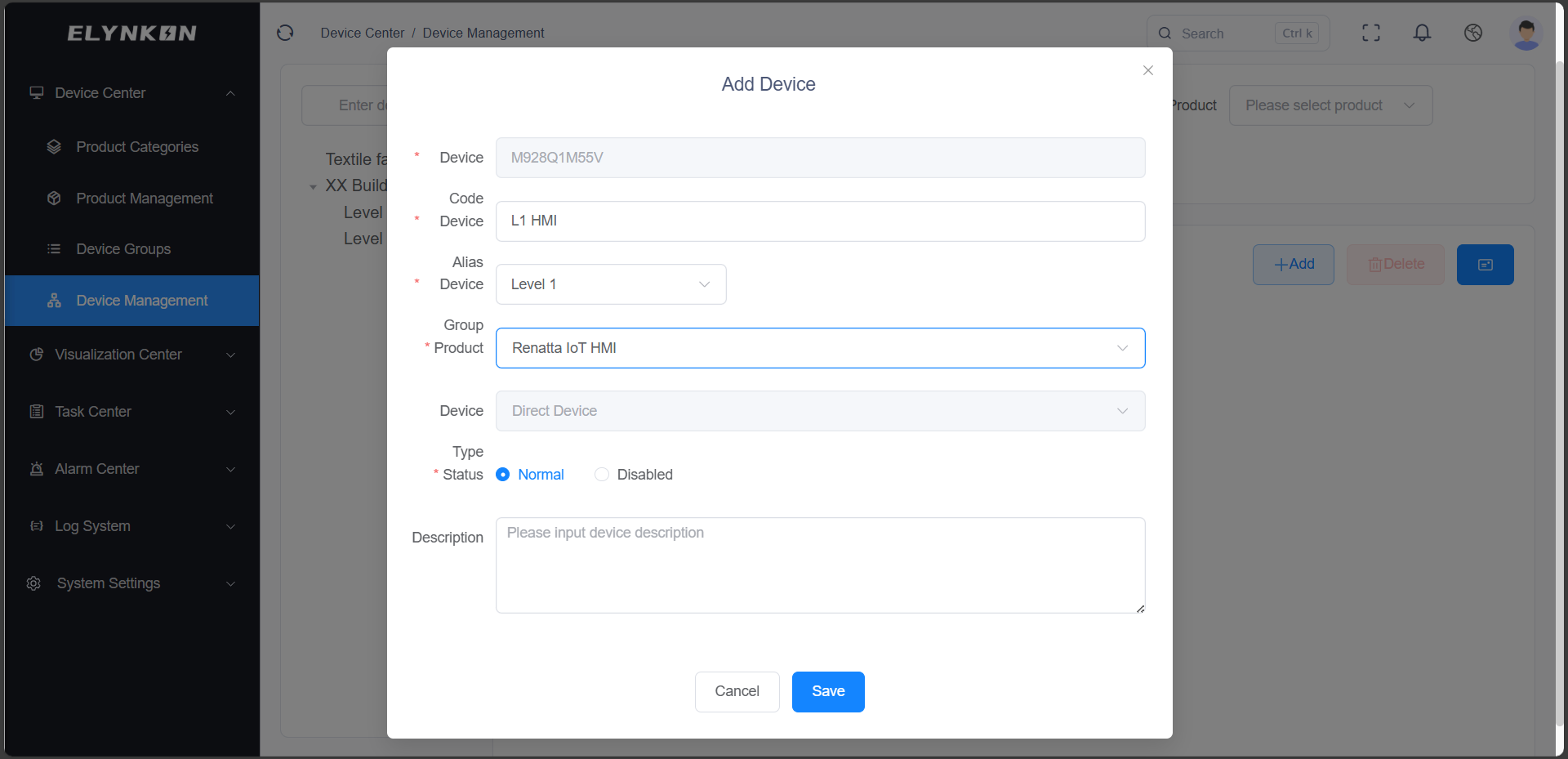
Figure 6-3
This device will automatically bind to the thing model parameters configured for the product you select.
6.3 Device Details
6.3.1 Accessing the Device Detail Page
Click "Detail" button to view the device details.
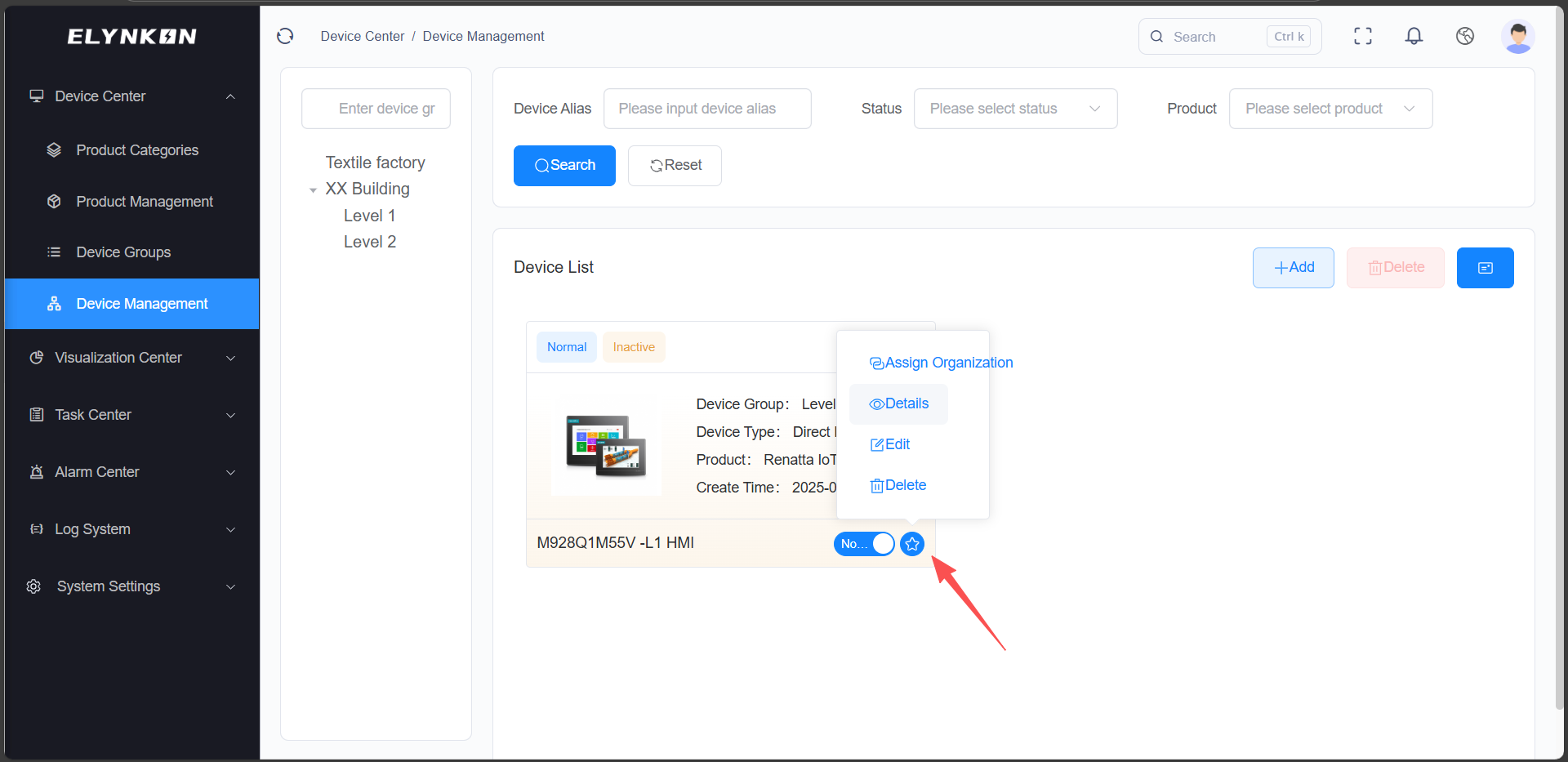
Figure 6-4
6.3.2 TSL Tab
On the TSL tab, you can view the parameters of this device—these parameters are derived from the parameters configured in the product and have been automatically synced to this device. All devices created based on this product will automatically load the same parameters. If you need to add special parameters for a specific device individually, you can click the "+ Add" button on this tab to do so.
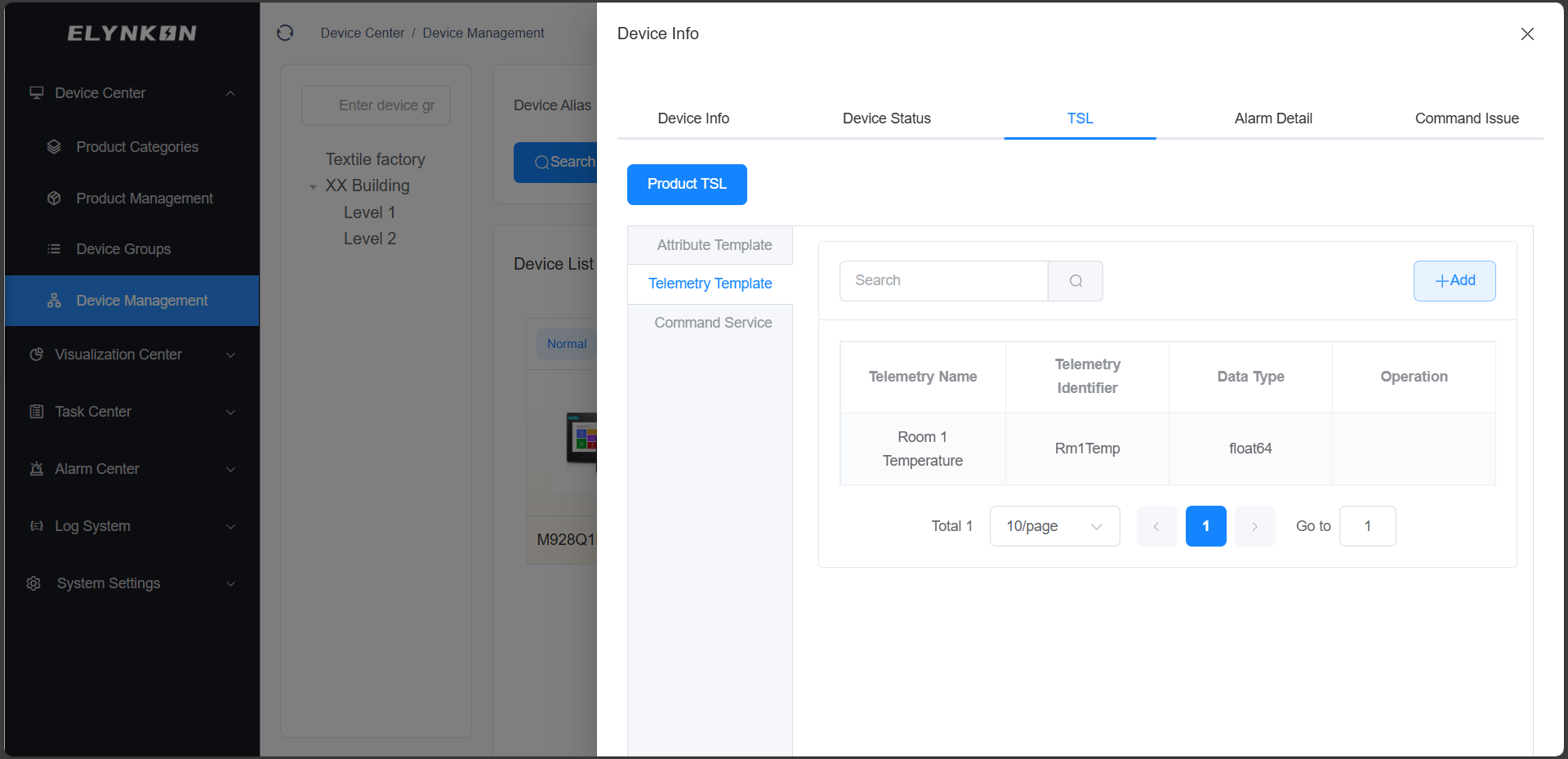
Figure 6-5
6.3.3 Command Issue
In the Command Issue Page of the corresponding device on the platform, click the "Command Issue" button.
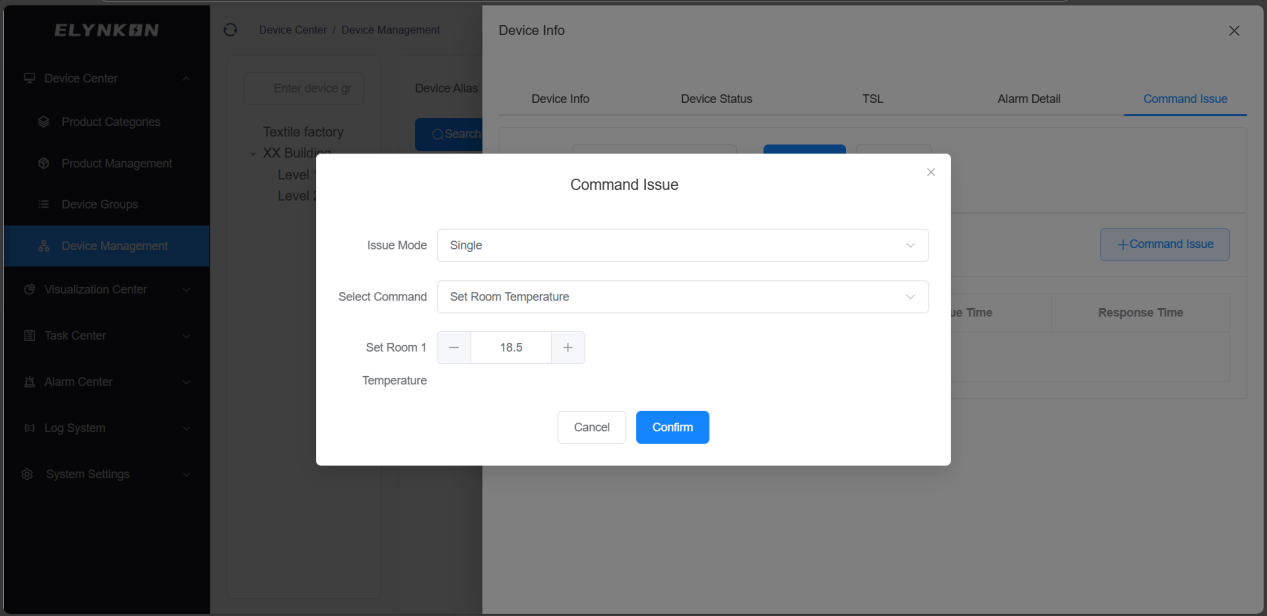
Figure 6-6
Take single mode as an example: select the Command Service created in the previous steps and enter a value. For example, if you need to adjust the set temperature of Room 1 to 23°C, simply enter the value "23".
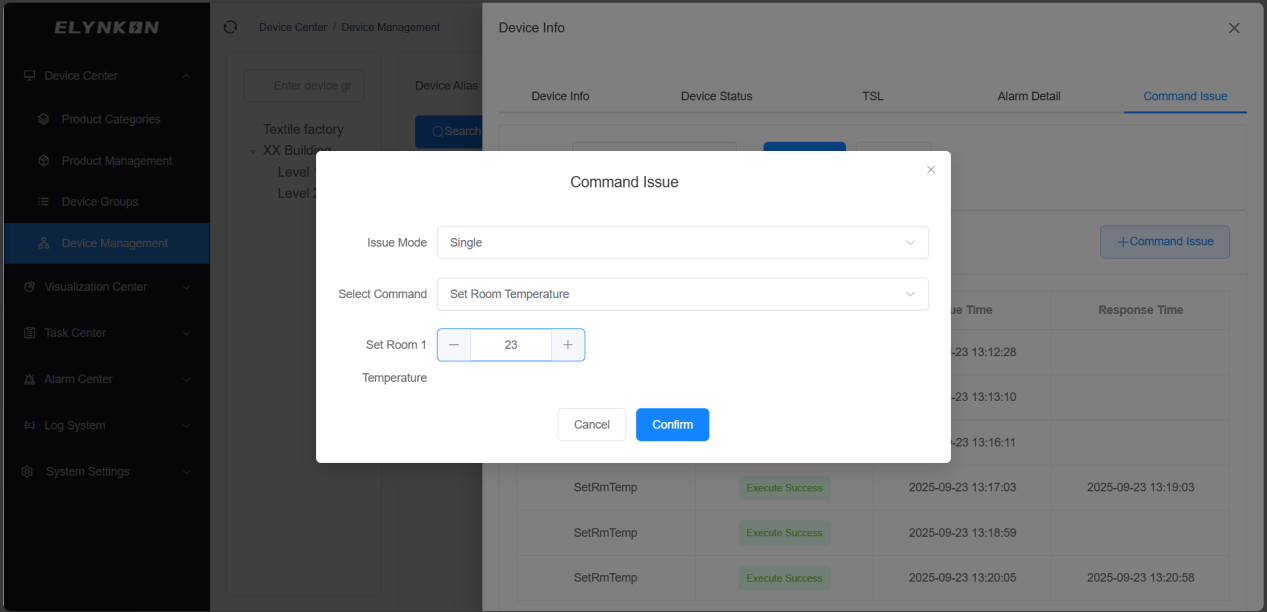
Figure 6-7
6.3.4 Device Status
On the Platform's Device Status Page, you can view that the platform has successfully received the data reported by the on-site device.
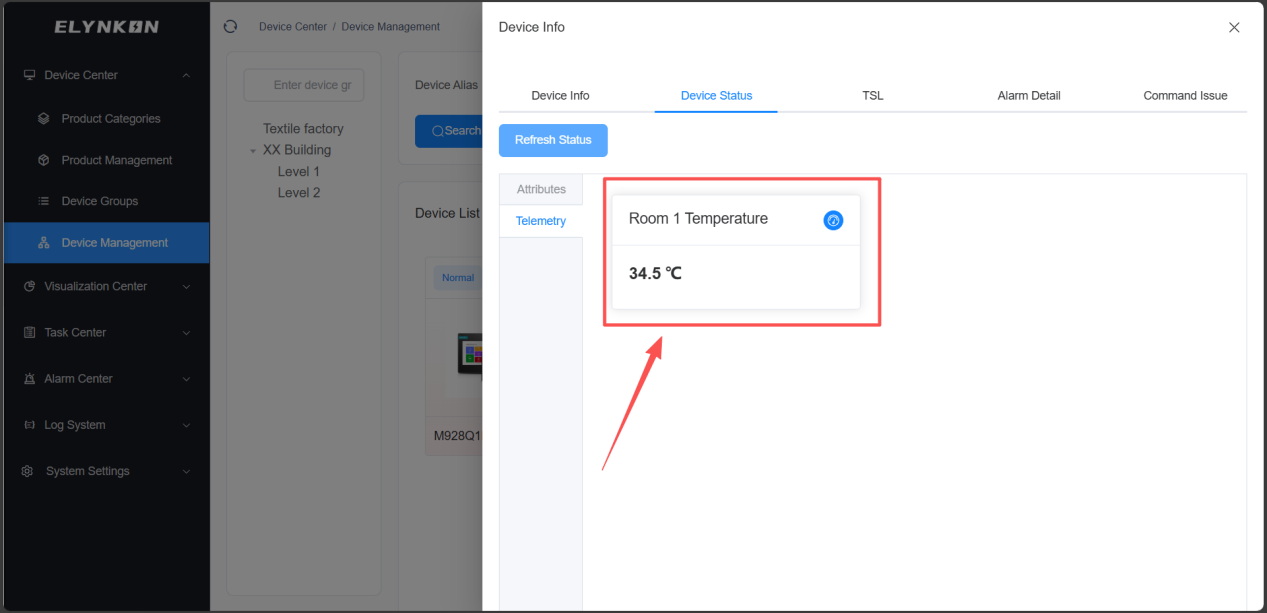
Figure 6-8
6.4 Device Assignment
In the "Operation" column of the row where the target device is located, click the "Assign" button to assign the device to a different device group.
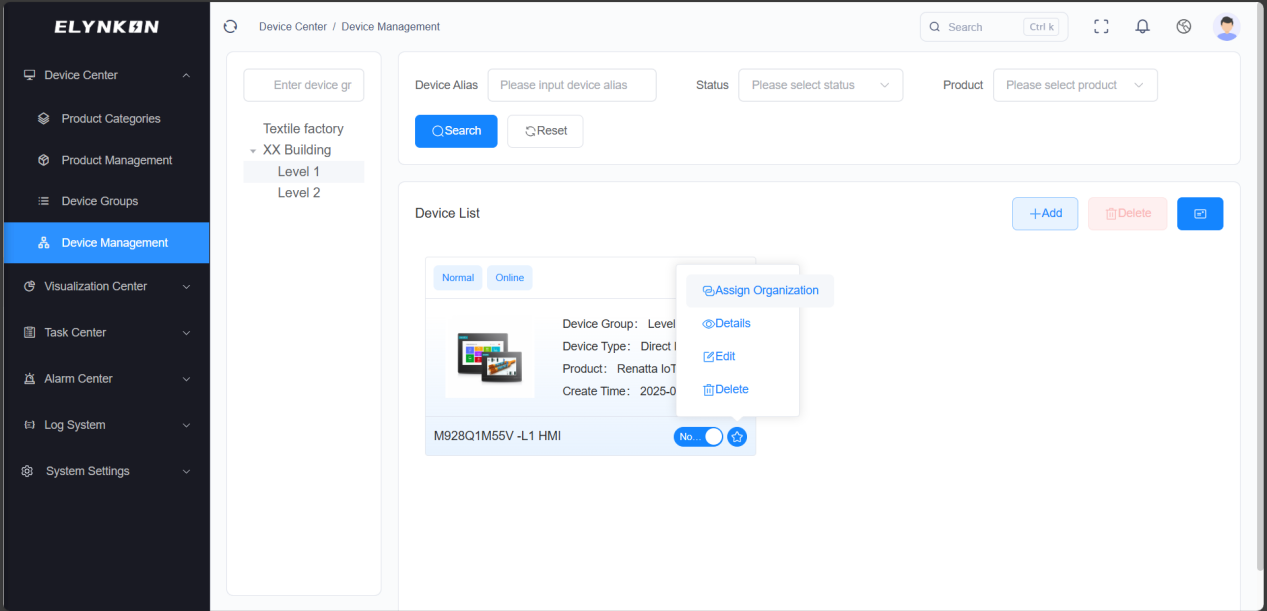
Figure 6-9
6.5 Device Modification
In the "Operation" column of the row where the target device is located, click the "Edit" button to access the dedicated edit page for this device and then modify the device information.
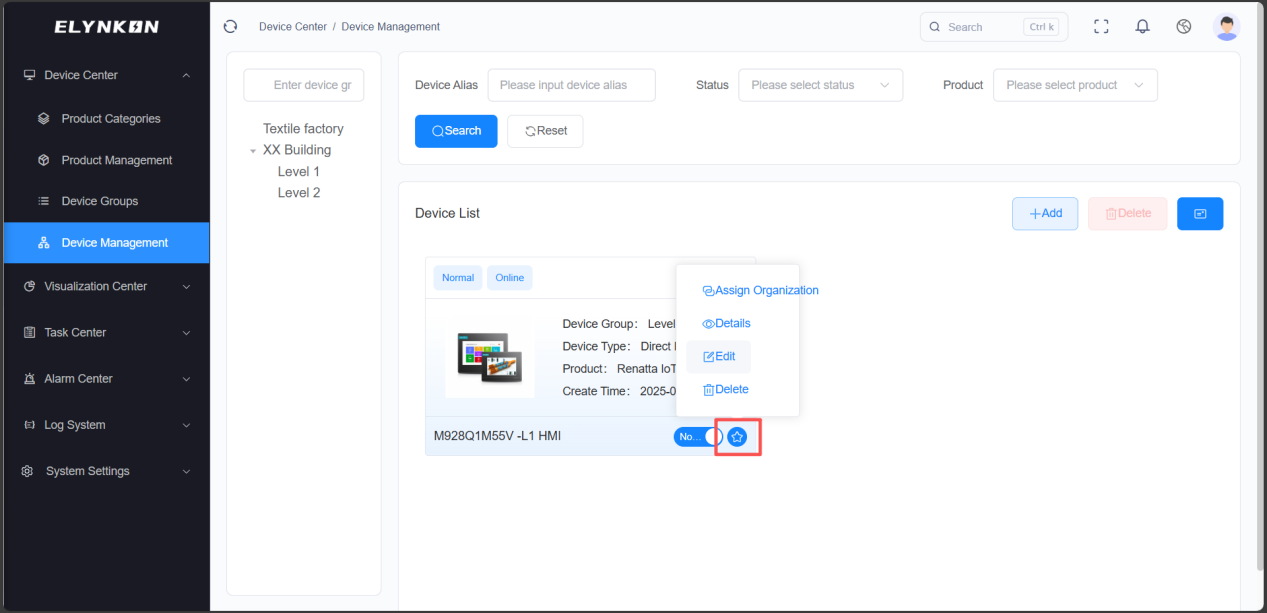
Figure 6-10
The device information that can be modified includes: device name, device group, product, status, and description. Click the "Save" button to complete the modification.
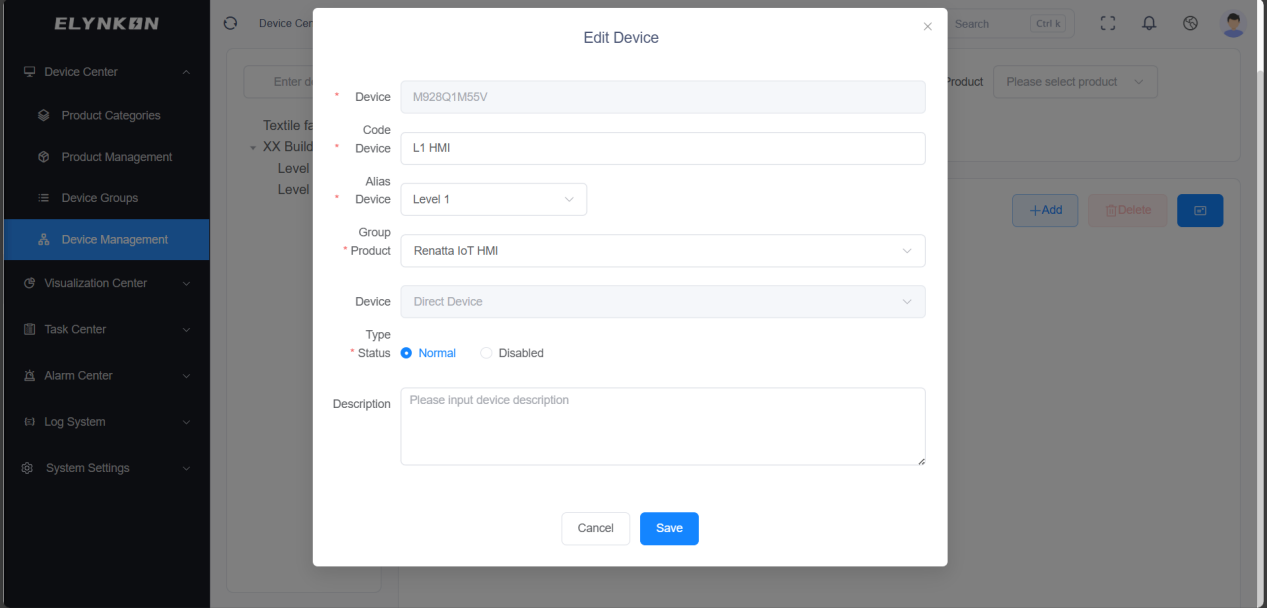
Figure 6-11
6.6 Device Deletion
In the "Operation" column of the row where the target device is located, click the "Delete" button. Once the confirmation window pops up, click the "Confirm" button in the window to complete the deletion of the device.
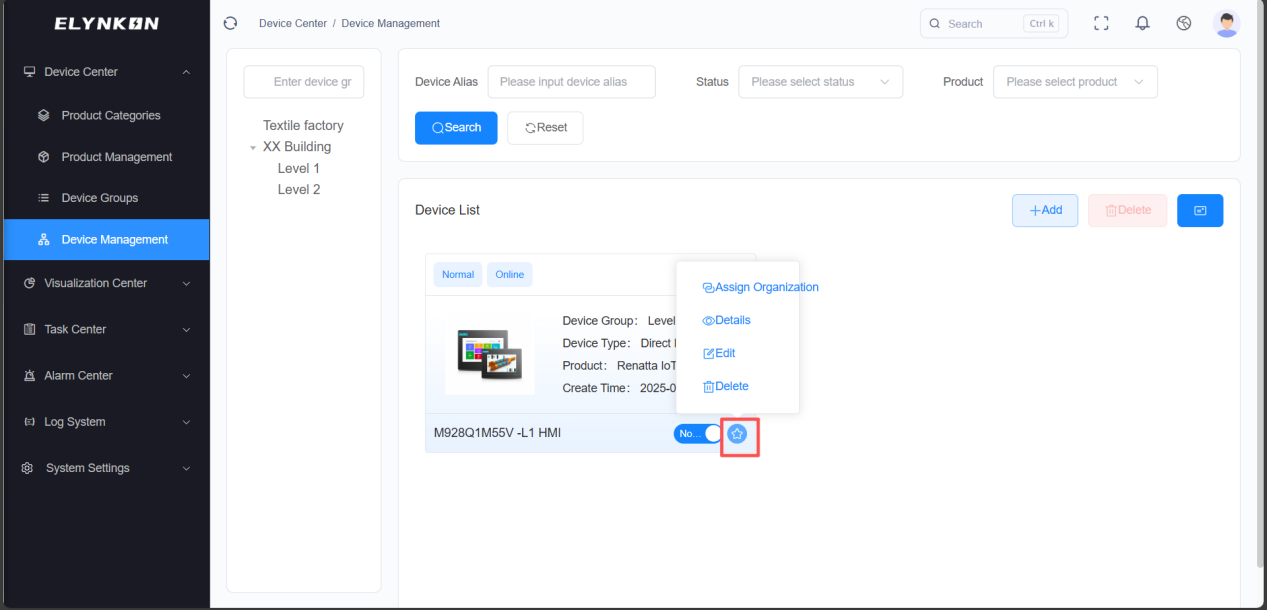
Figure 6-12
© 2026 厦门易联控贸易有限公司
Powered by Xiamen Renatta Technology Co., Ltd.
 闽公网安备35021302000901号
Documentation V1.0 | Last updated: 2026-06-08