
4. Product Management
4.1 Features Introduction
The product management function is designed to manage and maintain the product information and related parameters of IoT devices in the platform.
The parameters of the product are derived from the product's Thing Model (TSL). The Thing Model is a data model that describes the capabilities and attributes of a device, which defines the device's properties, services, and events.
It serves as the core carrier for connecting physical devices with platform functions, enabling standardized management and intelligent interaction of devices.
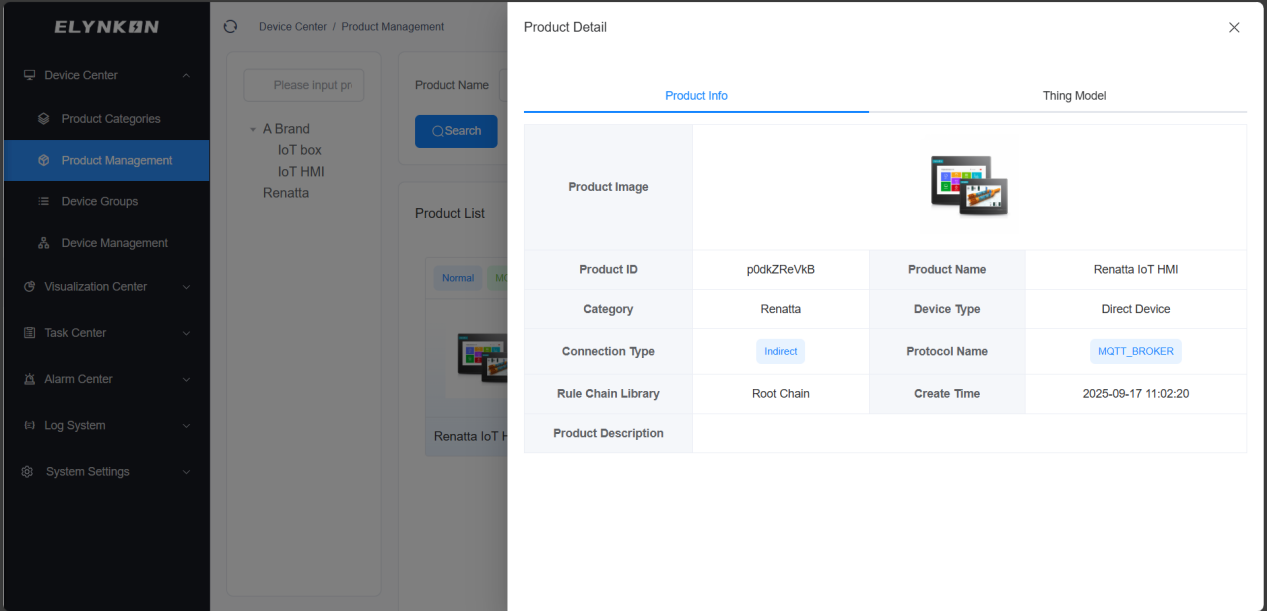
Figure 4-1
4.2 Product Creation
4.2.1 Adding a New Product
You can click the "+" button in the Device Management module to add a product.
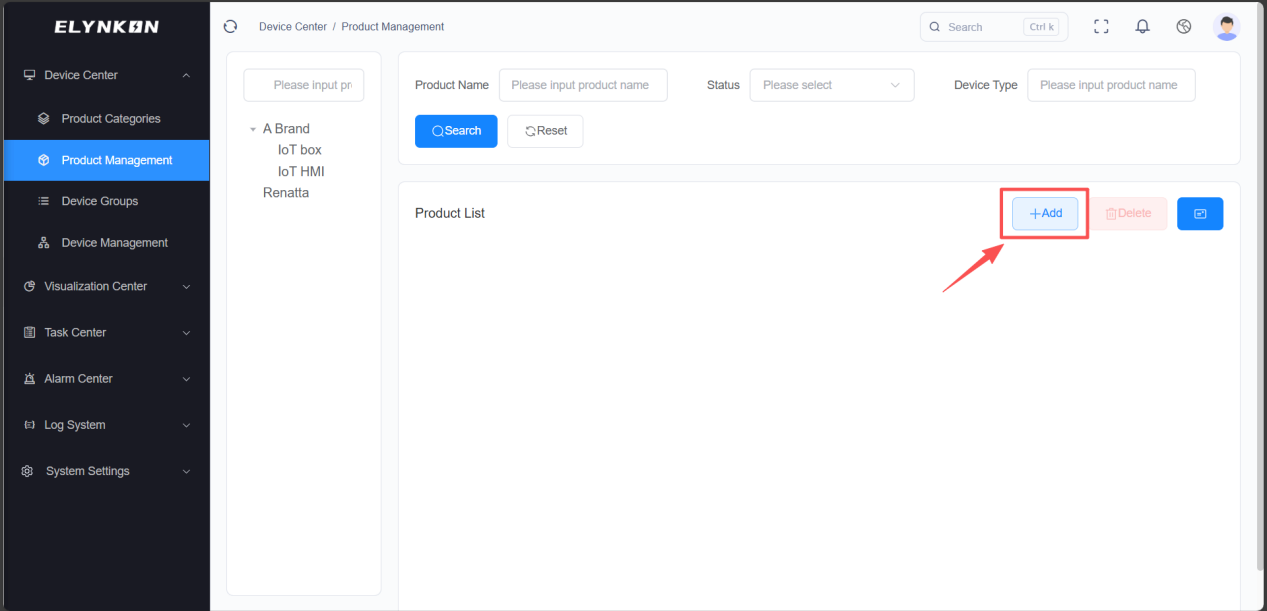
Figure 4-2
4.2.2 Filling in the Basic Product Information
Step 1: Enter the product name: e.g., "A Brand IoT HMI".
Step 2: Select the product category: e.g., "A Brand" - "IoT HMI".
Step 3: Select the connection method: Directly connected device or Gateway device
Step 4: Select the communication protocol: MQTT, Modbus, etc.
Step 5: Select the status: Normal or Disabled
Step 6: Enter the description.
Step 7: Click the "Save" button.
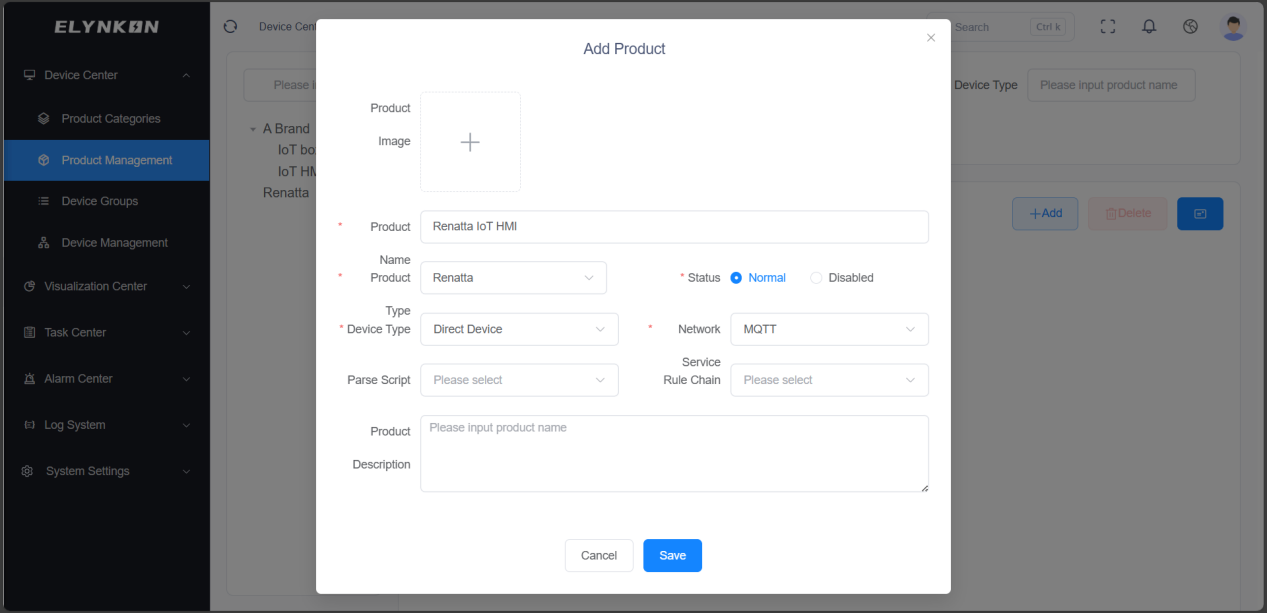
Figure 4-3
4.3 Product Detail and Thing Model
4.3.1 Accessing the Product Detail Page
After the product is created, click the "Detail" button to configure the Thing Model of the product.
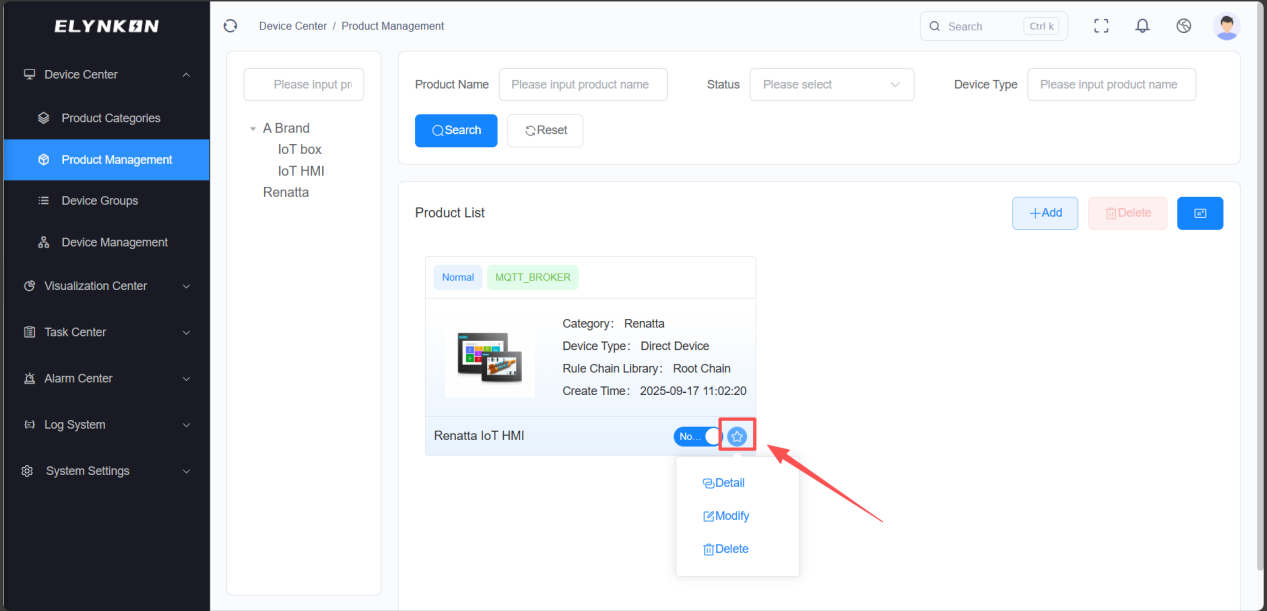
Figure 4-4
4.3.2 Adding Telemetry Parameters
If you need to monitor the data detected by on-site devices in real time, you can add parameters to the telemetry template. Choose "Telemetry Template" tab and click the "+Add" button to add parameter.
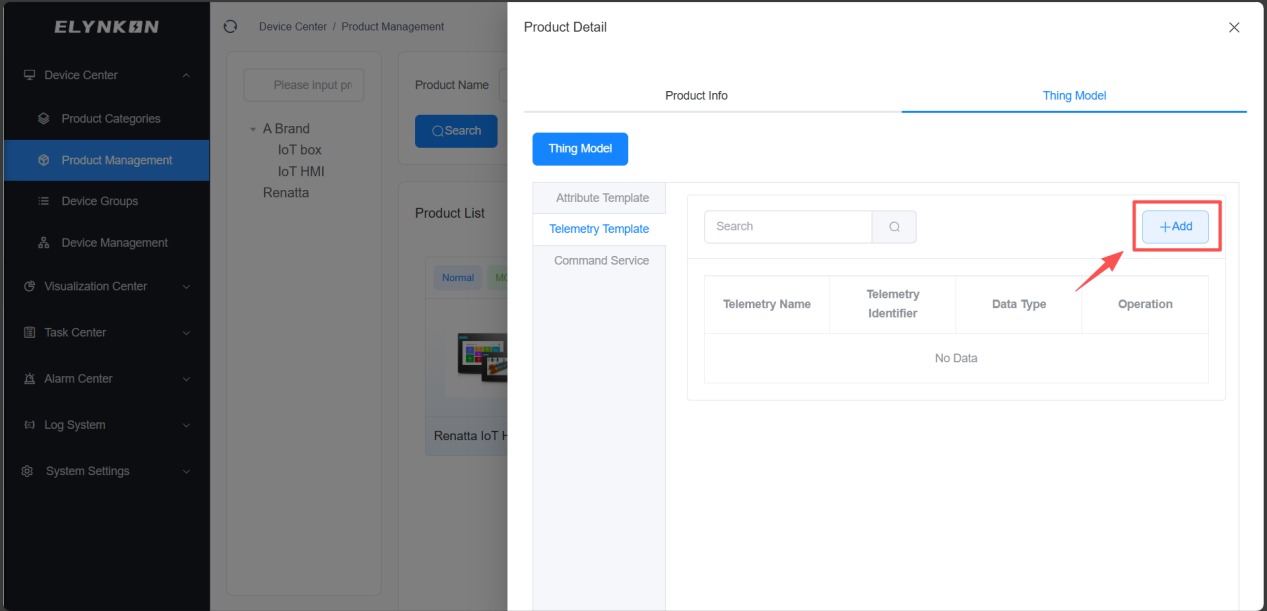
Figure 4-5
Enter the telemetry name and telemetry identifier. Select the data type. For example, If we want to obtain the temperature of Room 1 detected by on-site devices, the telemetry name can be "Room 1 Temperature" and the telemetry identifier can be "Rm1Temp". Set the data type to float, and you can configure the display unit "℃" for this data.
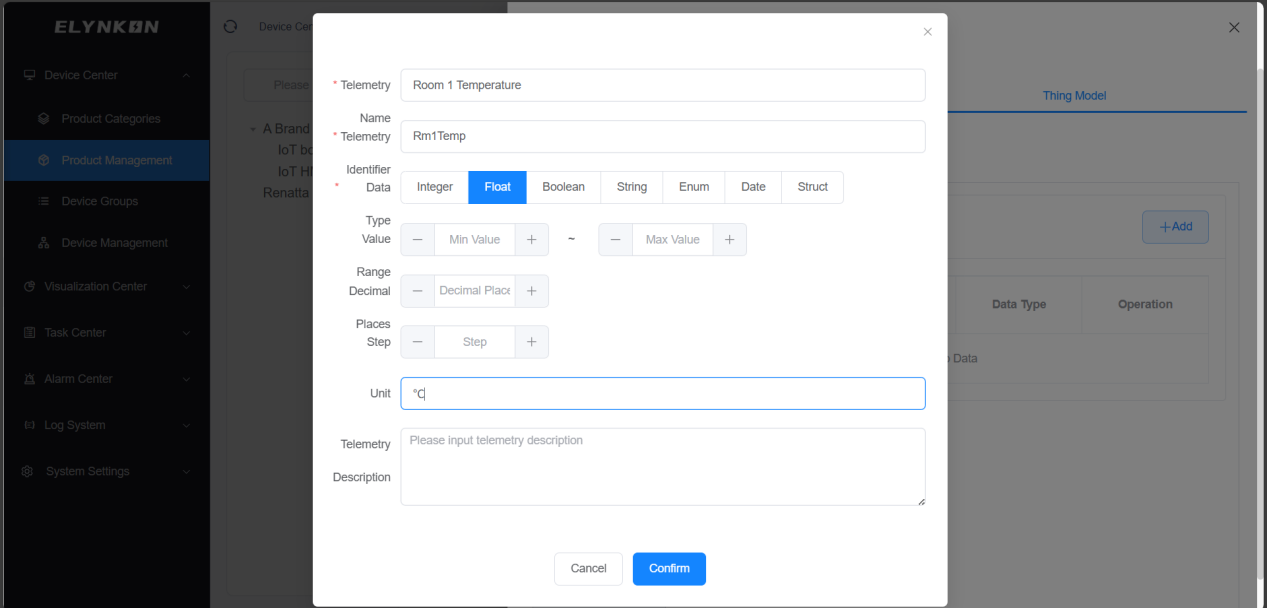
Figure 4-6
After completing the above operations, telemetry parameter will be displayed in the table of the "Telemetry Template" tab.
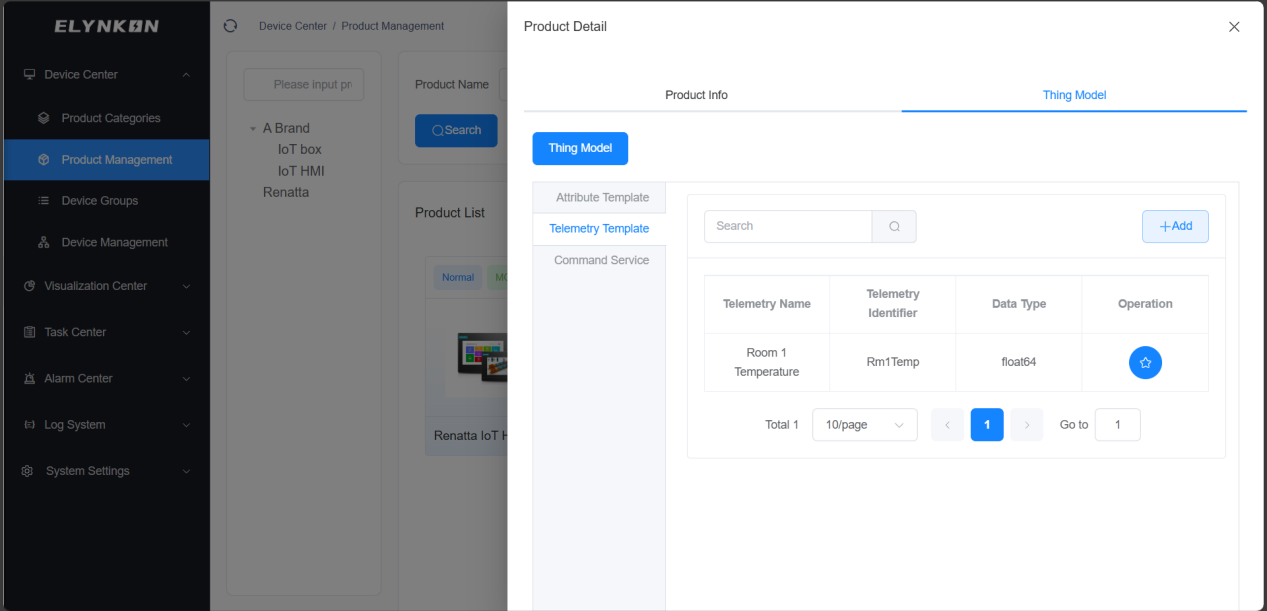
Figure 4-7
4.3.3 Adding Command Service
If you need to control on-site devices or modify their data, you can add a Command in the Command Service. Choose "Command Service" tab and click the "+Add" button to add commands.
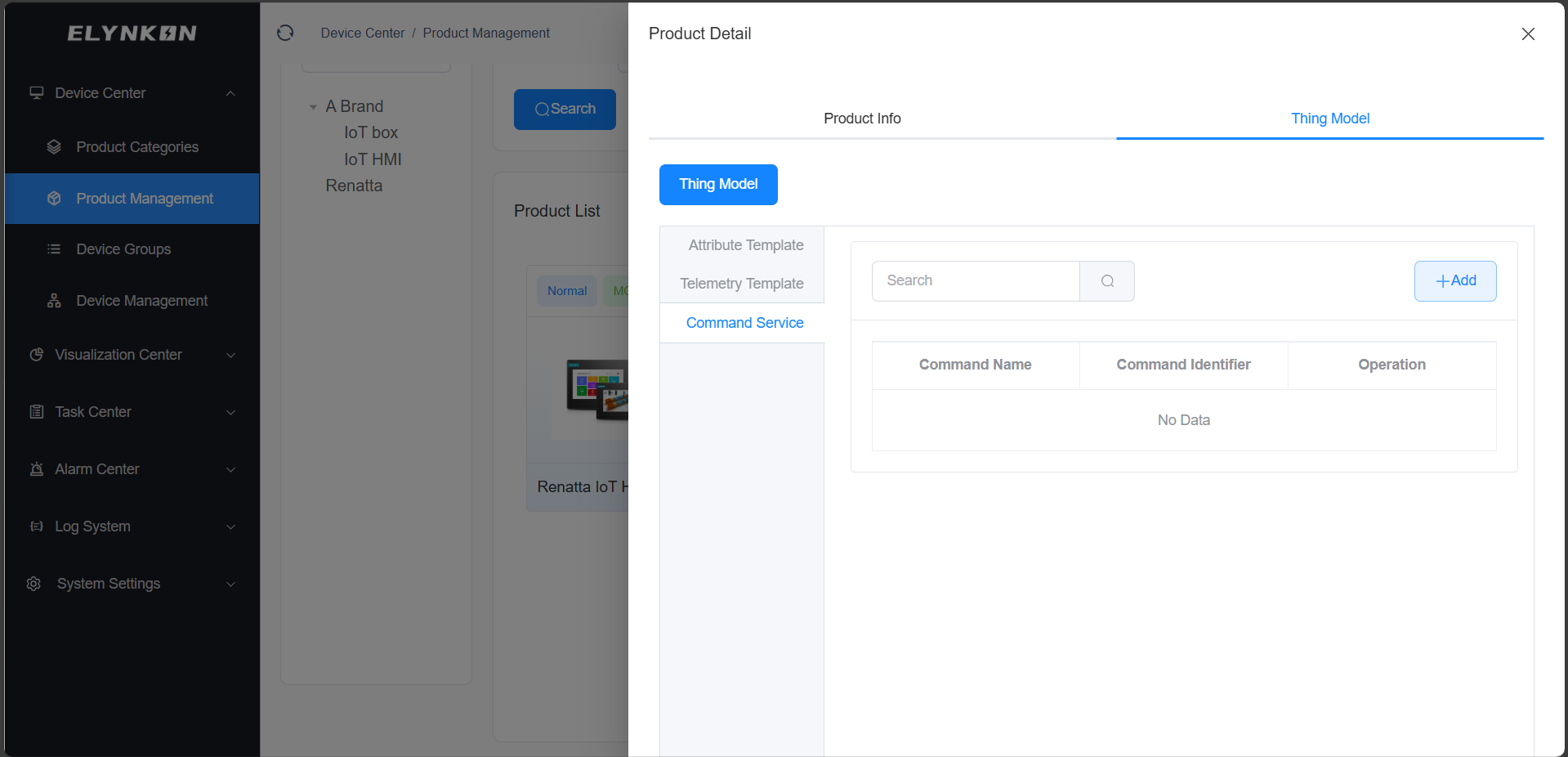
Figure 4-8
Enter the command name and command identifier. For example, if we need to modify the room set temperature of on-site devices, the command name can be set to "Set Room Temperature" and the command identifier can be set to "SetRmTemp".
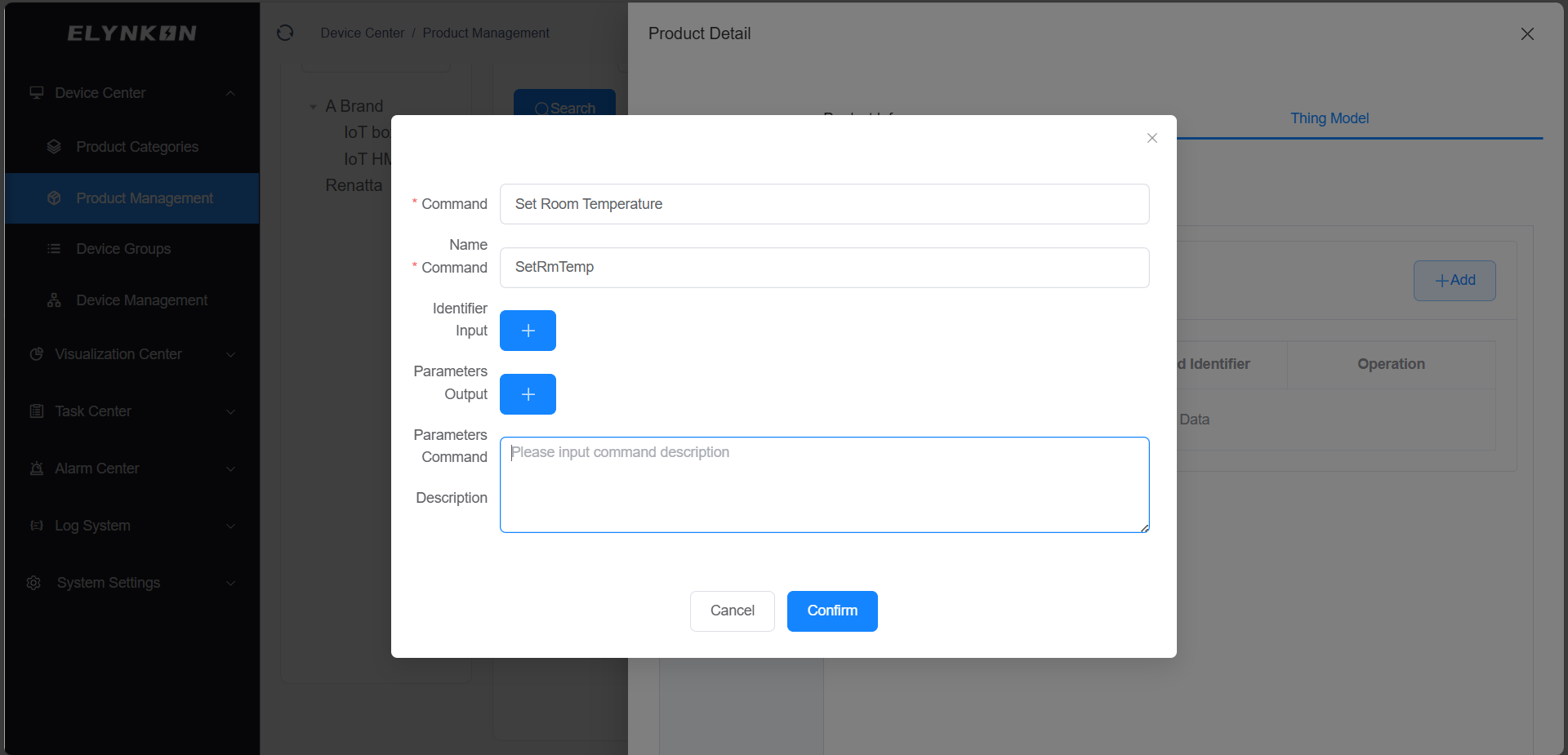
Figure 4-9
Click the "+" button for input parameters to add the parameters to be written to the device. For example, when you need to modify the set temperature of Room 1, the parameter name can be set to "Set Room 1 Temperature", the parameter identifier can be set to "SetRm1Temp", select float type for the data type, and the display unit can be set to "℃".
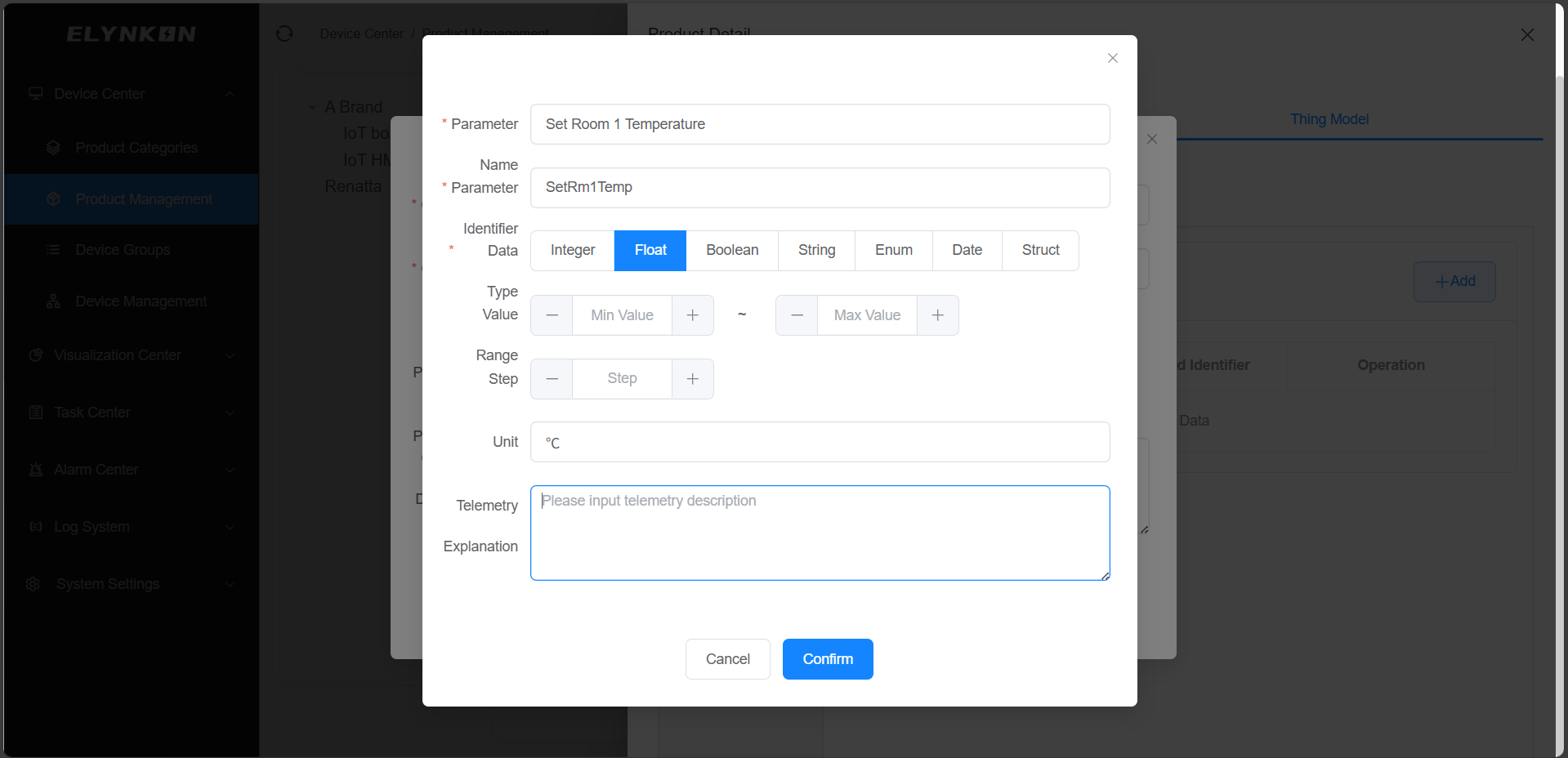
Figure 4-10
After completing the above operations, command will be displayed in the table of the "Command Service" tab.
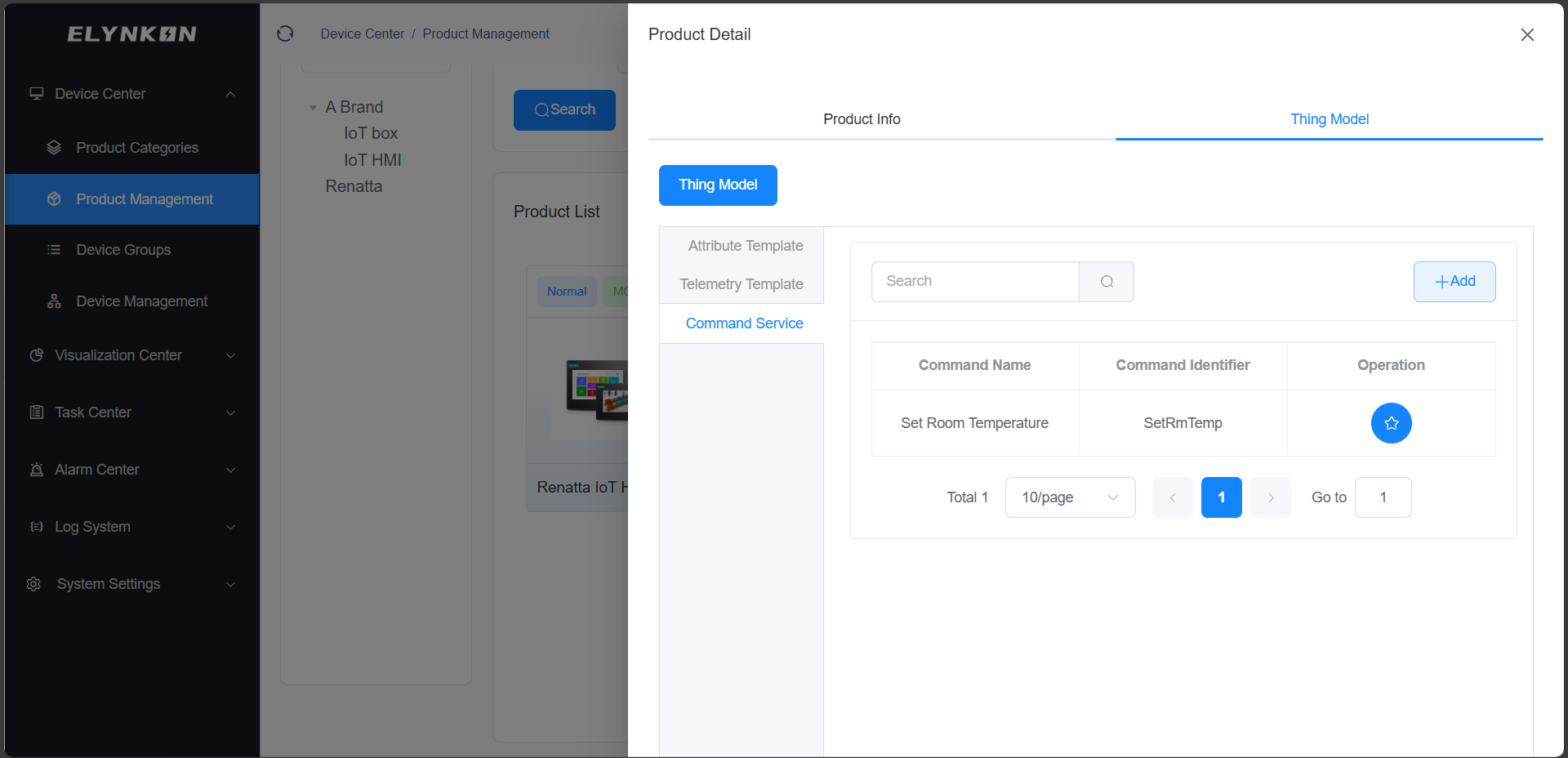
Figure 4-11
4.3.4 MQTT Data Reporting Structure Based on the Thing Model
Reporting data to the platform
Taking telemetry data as an example, the Topic "v1/devices/me/telemetry" can be used to report data.
On the platform's device TSL, telemetry parameter with the telemetry identifier "Rm1Temp" has been created in the previous steps.
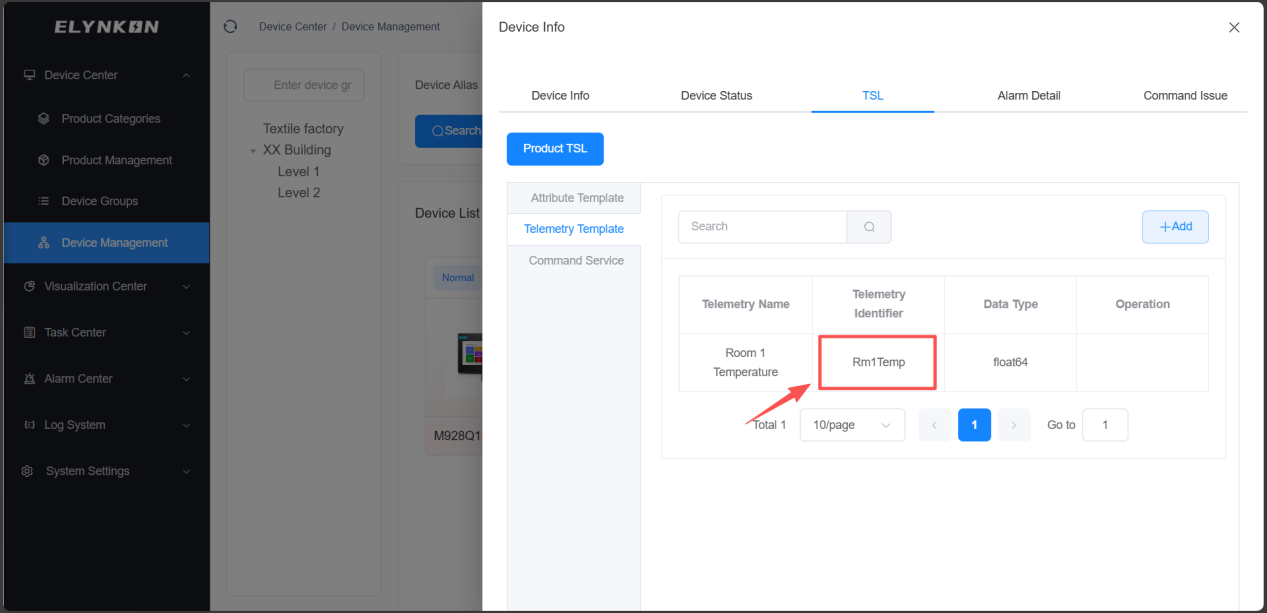
Figure 4-12
Its data reporting structure will be:
v1/devices/me/telemetry
{
  "Rm1Temp": value1
}
Controlling the on-site device
The platform can control on-site devices with Command Service.
On MQTTX, you can subscribe to the topic "v1/devices/me/rpc/request/+".
In the Command Issue Page of the corresponding device on the platform, click the "Command Issue" button.
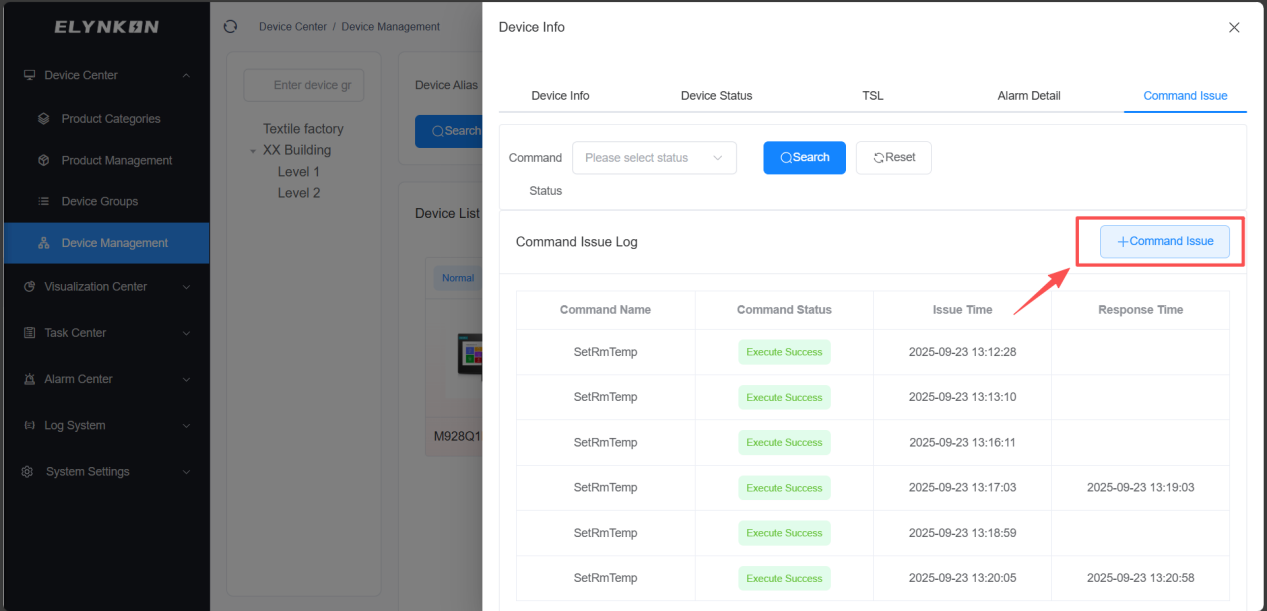
Figure 4-13
Take single mode as an example: select the Command Service created in the previous steps and enter a value. For example, if you need to adjust the set temperature of Room 1 to 23°C, simply enter the value "23".
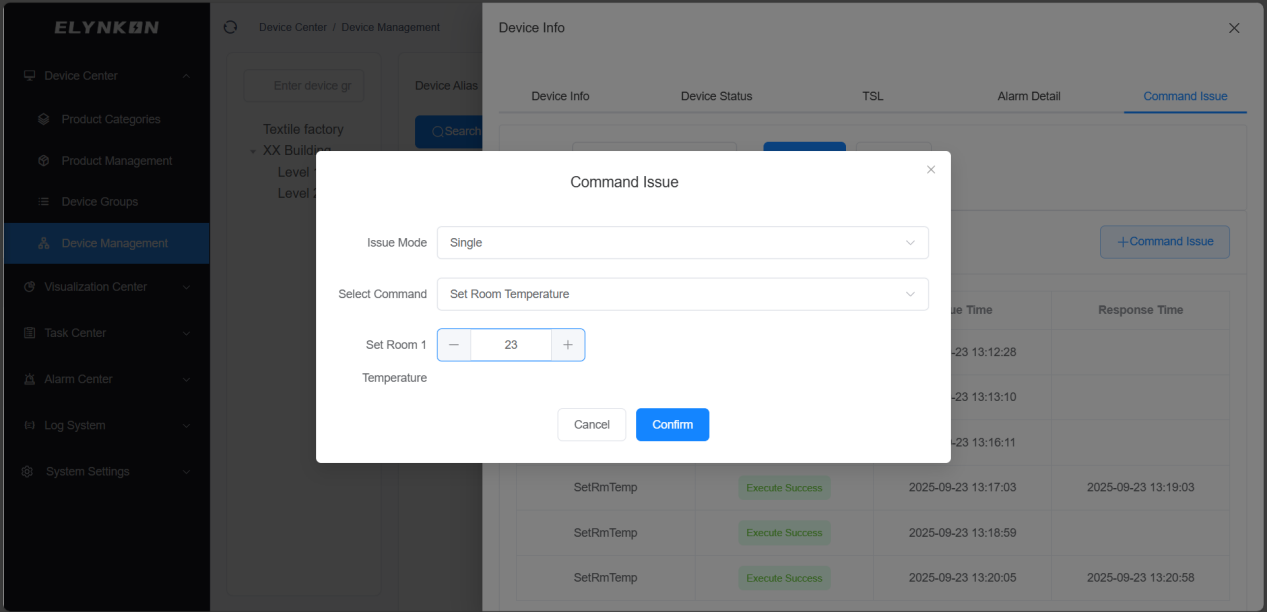
Figure 4-14
In MQTTX, you can receive the data sent by the platform by subscribing to the Command topic.
v1/devices/me/rpc/request
{
  "requestId": "5578603d-6e9b-4a44-b9ea-e5504ea3e5c9",
  "mode": "single",
  "method": "SetRmTemp",
  "params": {
    "SetRm1Temp": 23,
    "deviceName": "M928Q1M55V"
  }
}
4.4 Product Modification
In the "Operation" column of the row where the target product is located, click the "Edit" button to access the dedicated edit page for this product and then modify the product information.

Figure 4-15
The product information that can be modified includes: product name, product category, connection method, communication protocol, status, and description. Click the "Save" button to complete the modification.

Figure 4-16
4.5 Product Deletion
In the "Operation" column of the row where the target product is located, click the "Delete" button. Once the confirmation window pops up, click the "Confirm" button in the window to complete the deletion of the product.
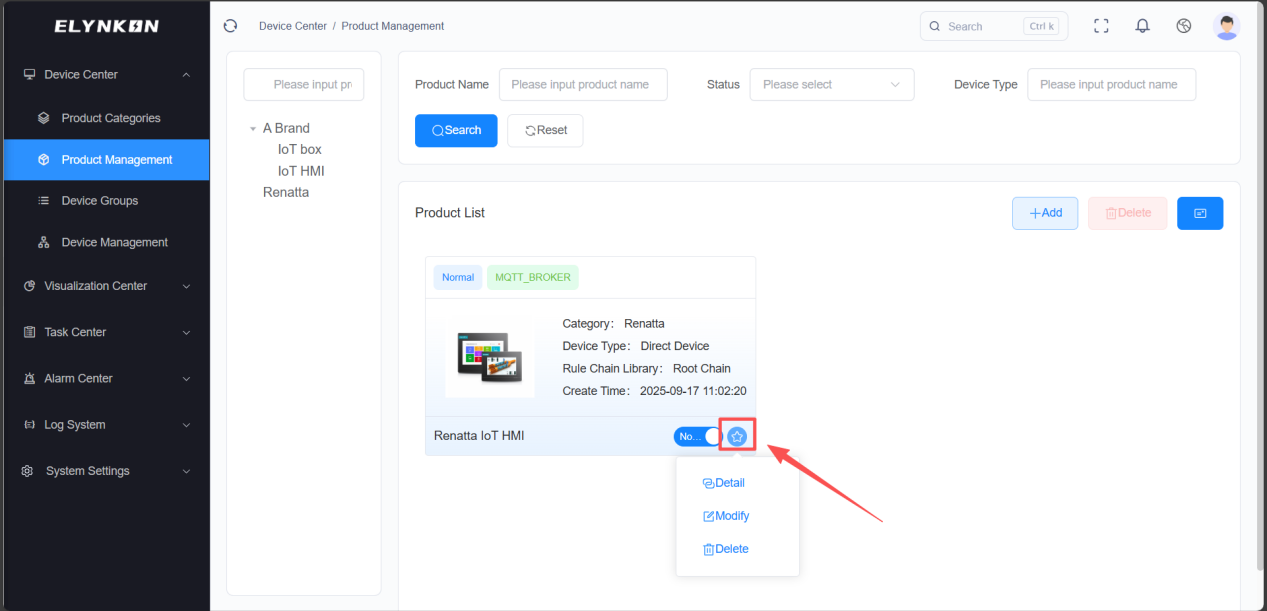
Figure 4-17
© 2026 厦门易联控贸易有限公司
Powered by Xiamen Renatta Technology Co., Ltd.
 闽公网安备35021302000901号
Documentation V1.0 | Last updated: 2026-06-08